Kylon CLI
The Kylon CLI lets you use Kylon inside Claude or Codex.
Kylon CLI
The Kylon CLI lets you use Kylon inside Claude or Codex.
Loading CLI walkthroughs…
Whose identity does the CLI use?
The Kylon CLI is a way to operate Kylon from the command line. It is not itself an Agent.
- Signed in as a person
- Device sign-in authorizes your human account. Commands use your permissions.
- Used by an Agent
- An external Agent uses Agent credentials and Agent permissions. It does not fall back to the operator’s human account.
- Available commands
- Commands and access vary by identity. Room membership, App access and Connection grants still apply.
Kylon CLI
Work with your workspace from the command line, then preview and publish an App change.
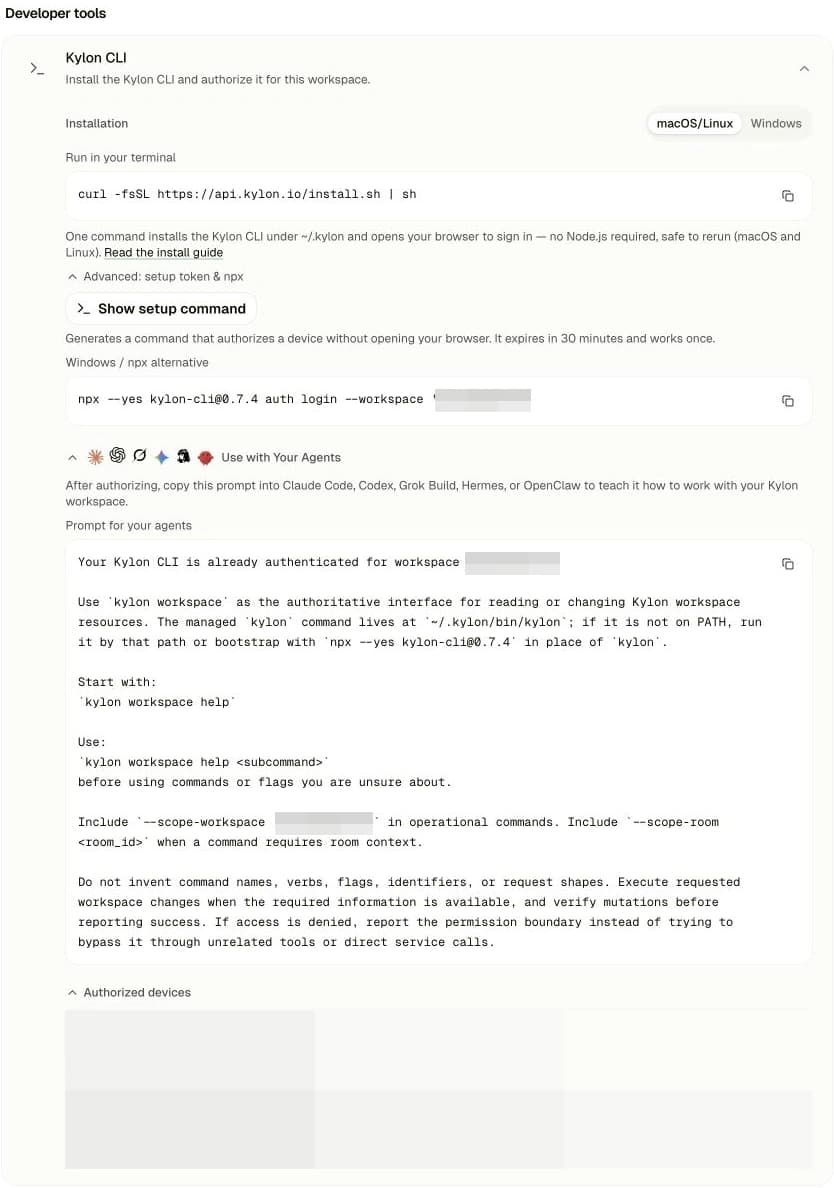
- 01
Open Kylon CLI settings
Open your profile menu at the bottom left and select the Settings option. Under Developer tools, expand Kylon CLI.
- 02
Install and sign in
Choose your operating system, copy the command, and run it in your terminal. Complete sign-in and authorization in the browser.
- 03
Give your agent the workspace prompt
Expand Use with Your Agents, then click the copy button next to Prompt for your agents. Copy the entire prompt—all of its contents—and paste it into Codex or Claude Code.
- 04
Ask for your first task
Ask it to summarize the Rooms you have joined, or build a draft App in Kylon.
“Use the Kylon CLI to summarize the latest progress and next steps in the Rooms I have joined.”
 Codex
Codex
 Claude