A Workspace admin can delete a Workspace from Settings. Deleting a Workspace permanently removes everything in it, including Rooms, messages, files, Apps, Agents and Automations, for everyone who uses it. It cannot be undone. Deleting a Workspace is separate from deleting your own account: your personal Kylon account and your other Workspaces are kept.
Before you start
- You need to be a Workspace admin. The owner is also an admin. Members do not see the delete option. See What admins and members can do.
- Save what you need. Download files and export App records before you delete. See Export your Workspace data.
- Only want to stop using it yourself? If other people still use the Workspace, you can select Leave workspace in the same section instead. An owner who leaves hands the Workspace to an admin first.
Steps
-
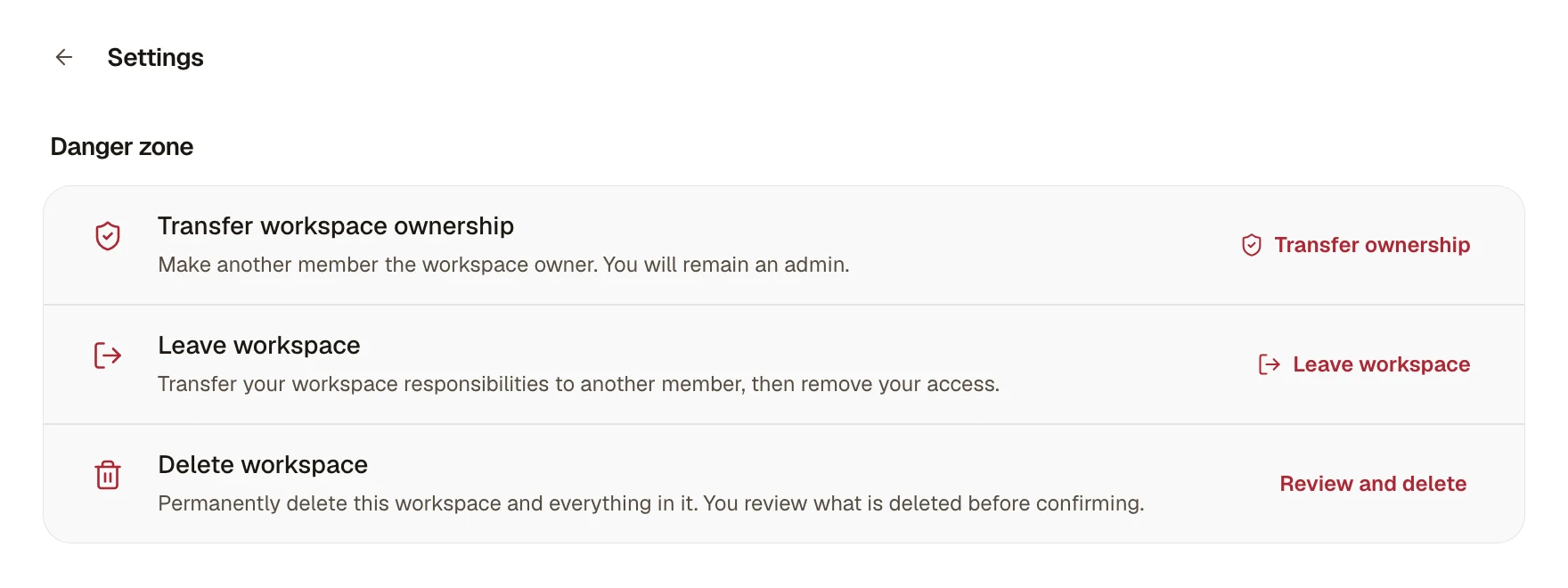
Open Settings. Open your account menu and select Settings, then scroll to Danger zone at the bottom of the page.
-
Start the deletion. Next to Delete workspace, select Review and delete.
-
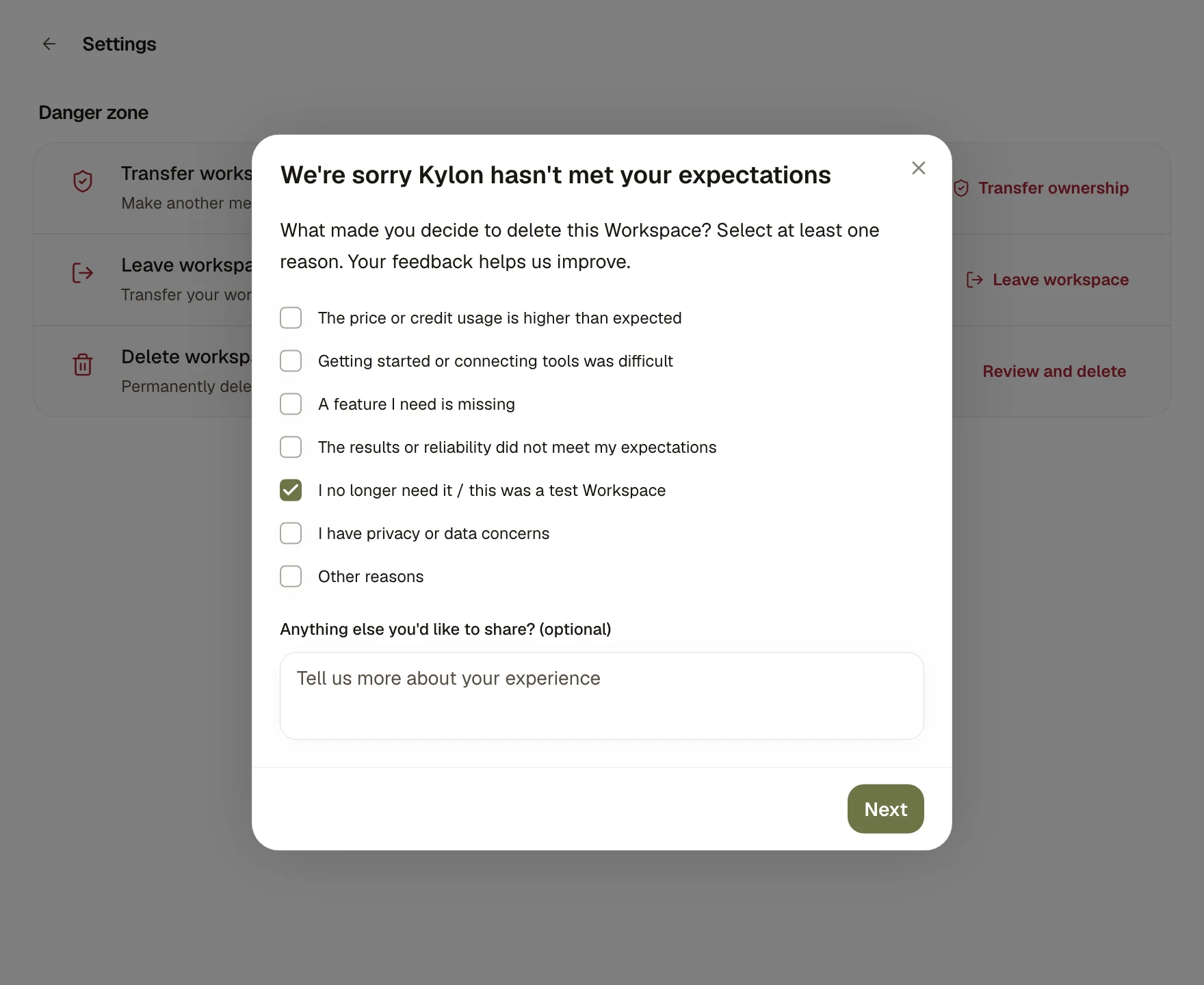
Tell us why you are leaving. Select at least one reason, add anything else you want to share, and select Next.
-
Choose whether to accept help. Kylon may offer credits so you can keep using the Workspace. Select Accept help to keep the Workspace, or Continue deleting to go on.
-
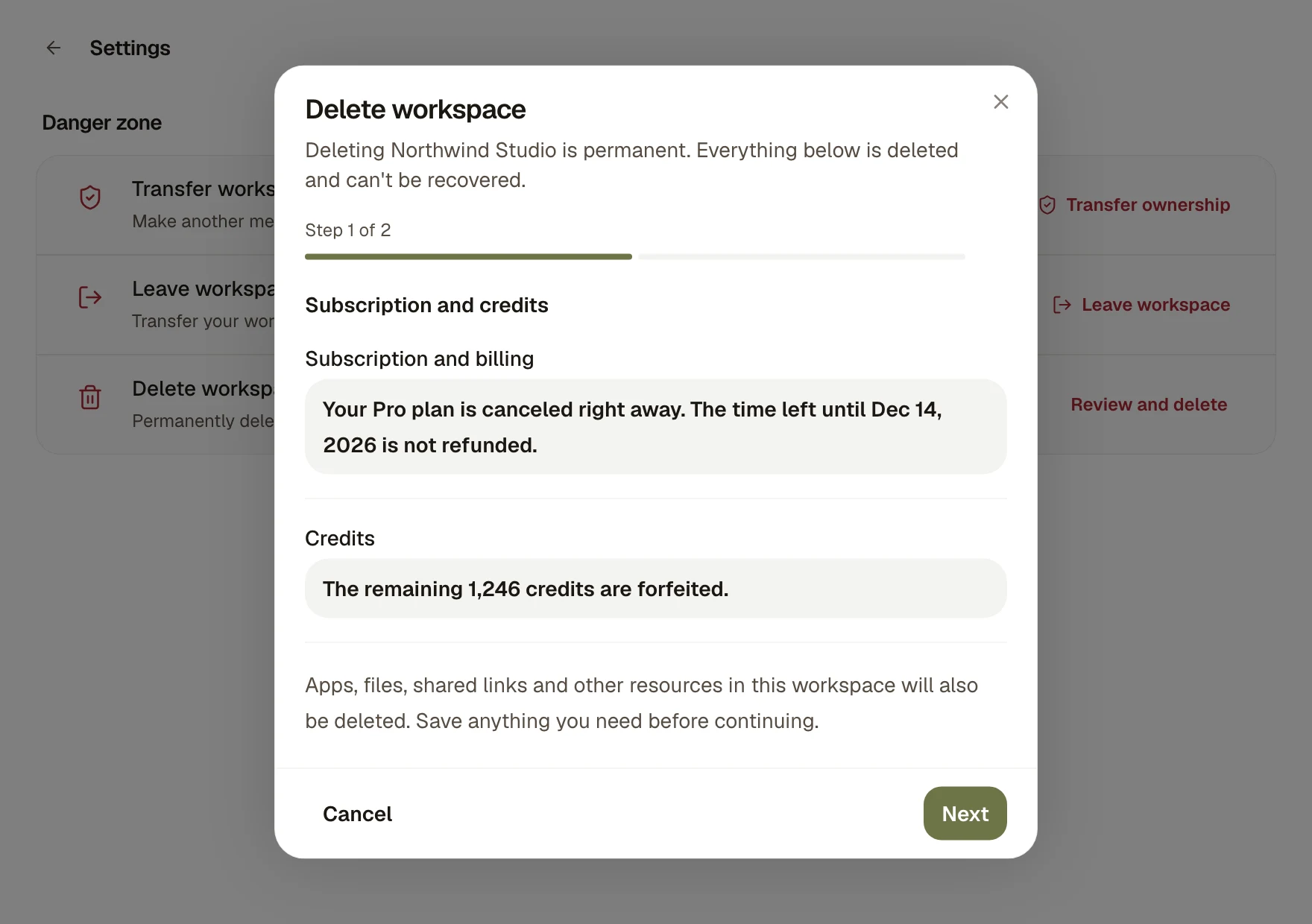
Review your subscription and credits. This step shows what you give up. An active subscription is canceled right away, and the time left in the current period is not refunded. Any remaining credits are forfeited. Select Next.
-
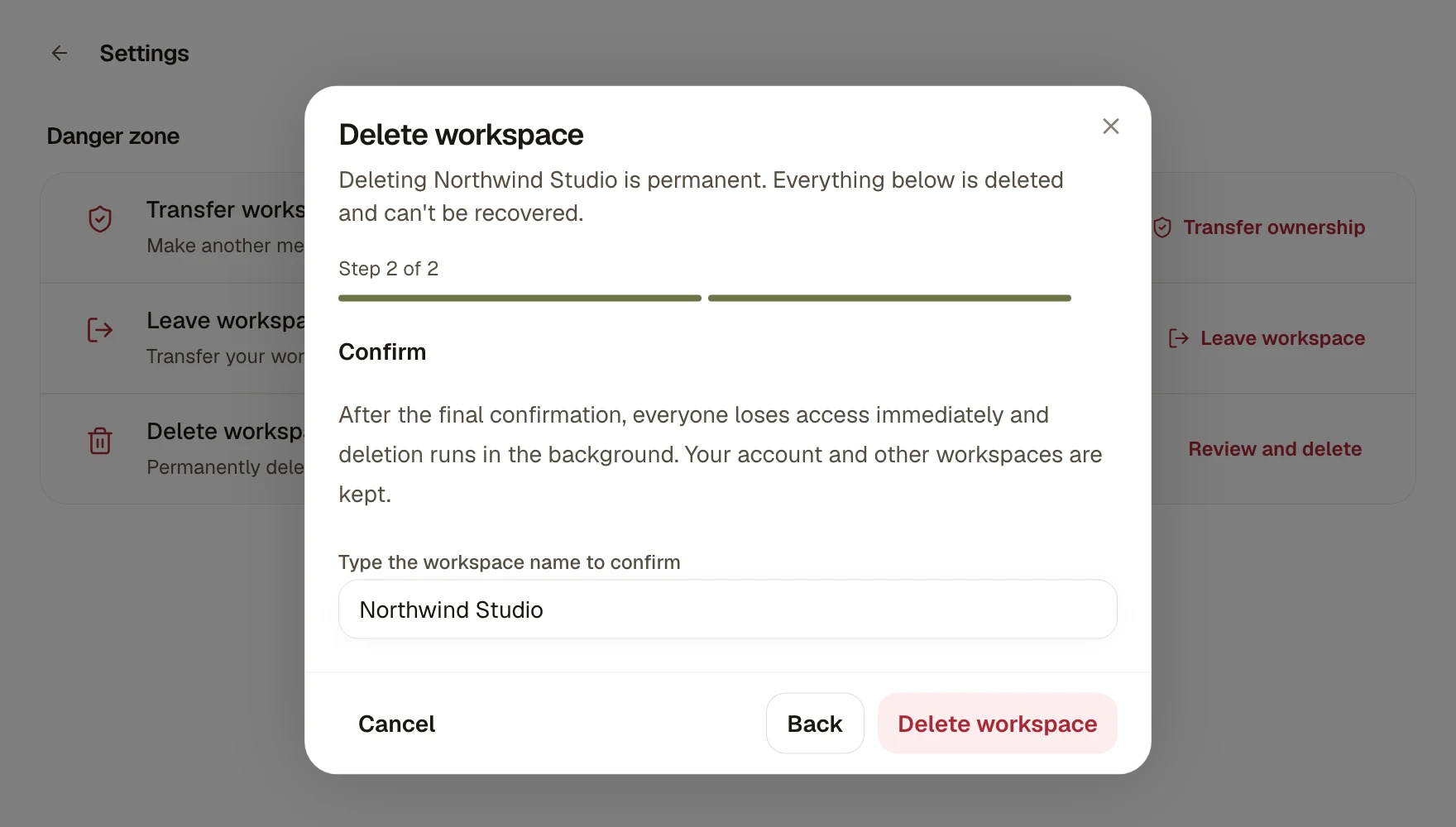
Confirm. Type the Workspace name exactly as shown, then select Delete workspace. Kylon asks you to confirm it is you before the deletion starts.
-
Wait for it to finish. A status page shows Deleting workspace. It can take a few minutes, and you can leave the page. If you do not belong to any other Workspace, Kylon signs you out.
Select Cancel or close the window at any step before the final confirmation to stop without deleting anything.
On your phone: in the Kylon app on iPhone or Android, the same steps open inside the app. In the Mac app, they open in your browser.
What happens when you delete a Workspace
- Everyone loses access at once. People in the Workspace are not notified. Their personal accounts are kept.
- Agents and Automations stop. Running work is stopped and scheduled Automations no longer run.
- Apps are deleted. Their links stop working, and their hosting, source code and databases are deleted. Custom domains stop working. You can delete their DNS records at your DNS provider afterwards.
- Shared links stop working. Public links and published templates stop working. Copies that other people already installed keep running.
- Connections, API keys and webhooks are removed.
- Connected computers are disconnected. To remove the Kylon background service from a computer, run
kylon disconnecton it. - Billing stops. The subscription is canceled immediately without a refund for the time left, and remaining credits are forfeited.
Logs and backups follow their own retention schedules, so backup copies are not erased at the moment you delete. See How long Kylon keeps your data.
If you cannot delete the Workspace
- The button is greyed out and the row says deleting is not available: email support@kylon.io from the email address you use with Kylon and name the Workspace. See Contact support.
- You do not see Danger zone or Delete workspace: you are not a Workspace admin. Ask an admin or the owner to delete it, or to make you an admin.
- Deletion did not finish: the status page says so and the Workspace stays closed to everyone. Select Email support on that page and the team will finish the deletion.
Related
- Delete your Kylon account: close your personal login, which is separate from deleting a Workspace.
- Export your Workspace data: take a copy of your files and records first.