Each invoice shows the billing name, address and tax ID that were saved for your Workspace at the moment the invoice was created. Kylon handles payments through Stripe, so these details live in Stripe. Changing them updates future invoices only. A paid invoice cannot be edited, but we can replace it with a corrected one.
Who can do this
Only Workspace admins can open Manage in Stripe and see invoice links. If you are a member, ask an admin. See What admins and members can do.
Update your details for future invoices
-
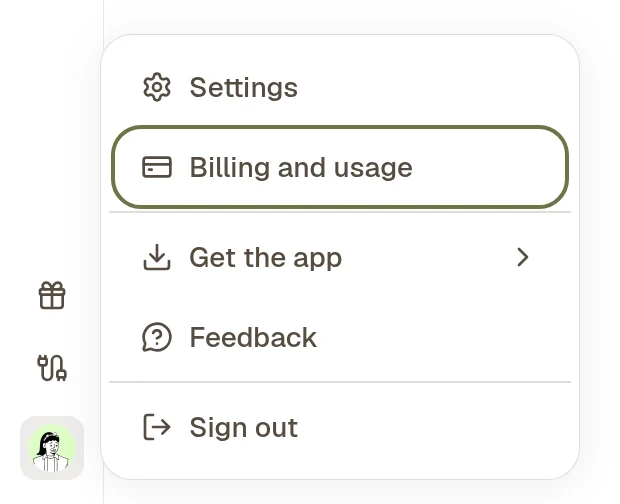
Open Billing and usage. Select your profile picture at the bottom of the left sidebar, then select Billing and usage.
-
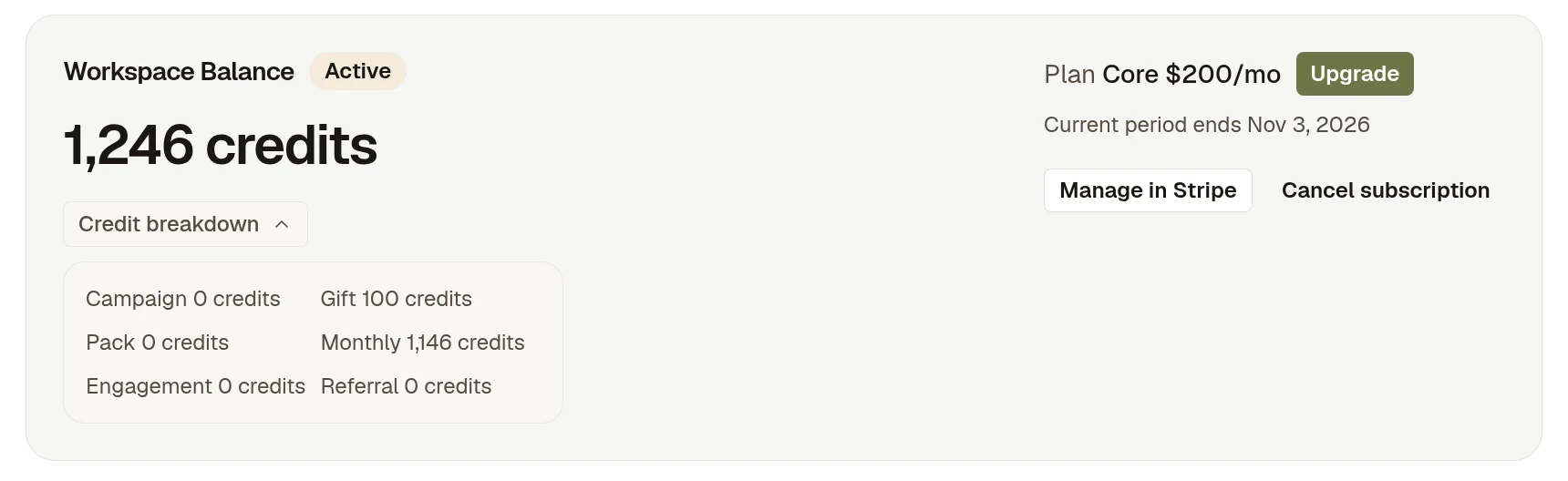
Open Stripe. In the Workspace Balance section, select Manage in Stripe. The button is shown while the Workspace has an active, trial or past-due subscription.
-
Change the details. In Stripe, update the billing name, address and, if you need it on your invoices, your tax ID such as a VAT number. Save, then return to Kylon.
The next invoice uses the new details. Invoices that were already created keep the details they were issued with.
Correct an invoice that was already issued
Email support@kylon.io from the address of a Workspace admin and include:
- the Workspace name
- the invoice number of each invoice you want corrected
- the exact company name, address and tax ID to show
We cancel each original invoice with a credit note and issue a replacement with the corrected details, marked as paid. You are not charged again, nothing is refunded, and your plan and credits do not change. We send the corrected invoices to you by email.
Update your details in Stripe first, as above, so that future invoices are right too.
If the Workspace has no subscription
If your Workspace has no active subscription, for example because you only bought a credit pack, Manage in Stripe is not shown. Email support@kylon.io with the details above and we will correct the issued invoices for you.
Find your invoices
Workspace admins can see past charges under Billing Activity on the same page. For subscription charges, select View in the Invoice column to open the invoice in Stripe, where you can download it as a PDF.