From product idea to profit on Amazon.
Research, suppliers, listings, FBA, ads, competitors and profit, in one Room with your team. An agent pulls the numbers and drafts the work. Nothing reaches Amazon, a supplier or a buyer until someone on the team says ok.


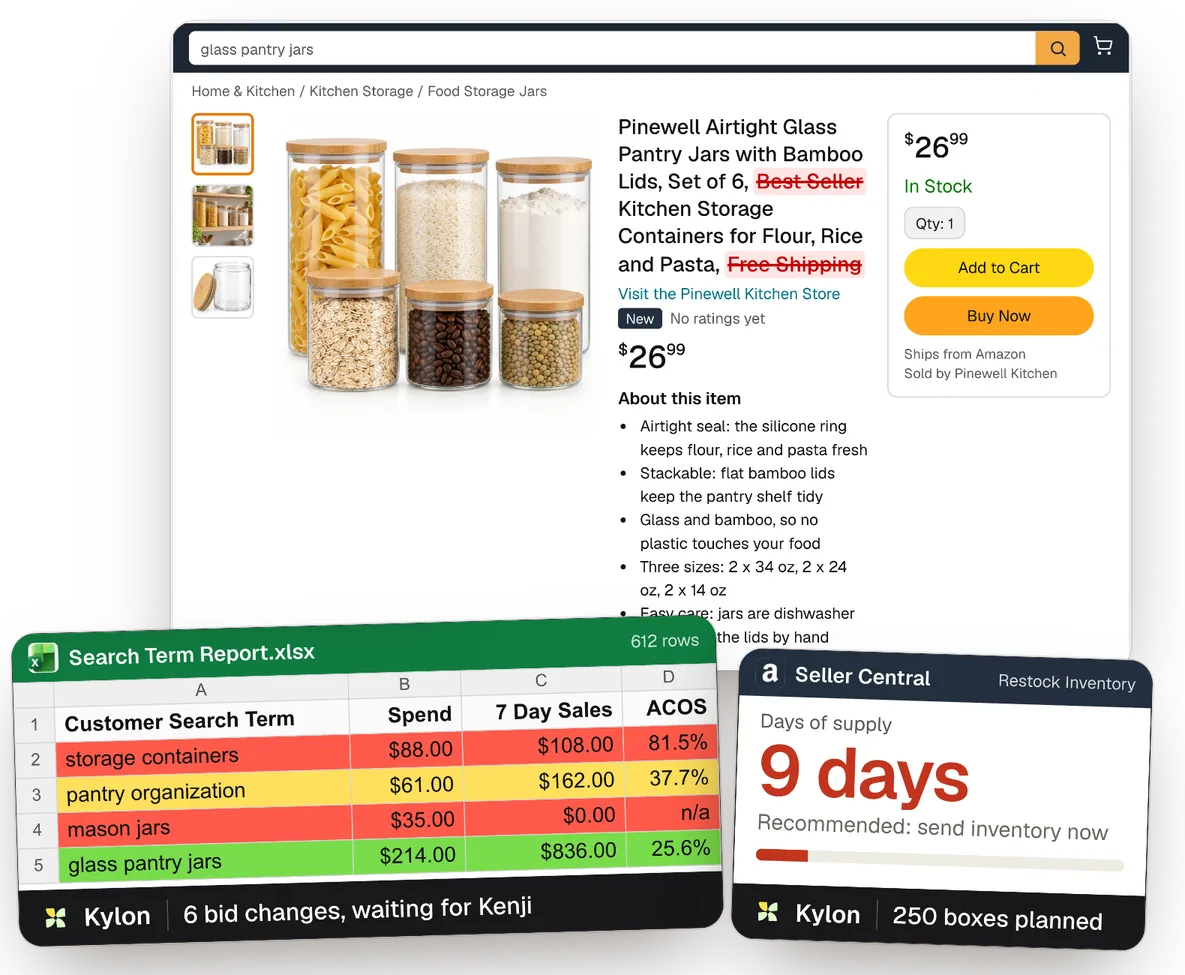
Pinewell Kitchen, its people and its numbers are made up for the film. Product names and logos belong to their owners.
The jobs you already know, finished in one Room.
Each card is a tool a seller has open every week. Underneath is what came back from Kylon, and who signed it off.
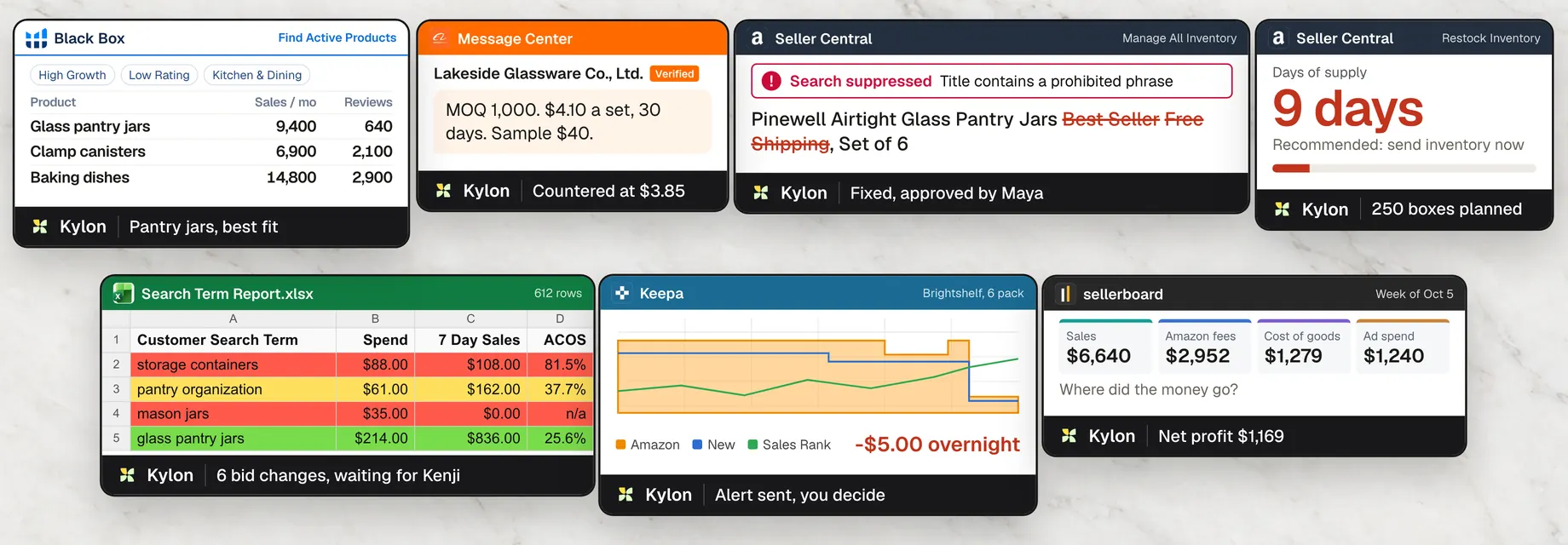
One product, from the first idea to the weekly profit.
The same Room as the film. Each step opens a tab of the team’s own Kylon App, laid out like the tool it replaces.
- 01Research
Pick the next product
- Today
- Black Box filters, Keepa charts and a spreadsheet to compare niches.
- In Kylon
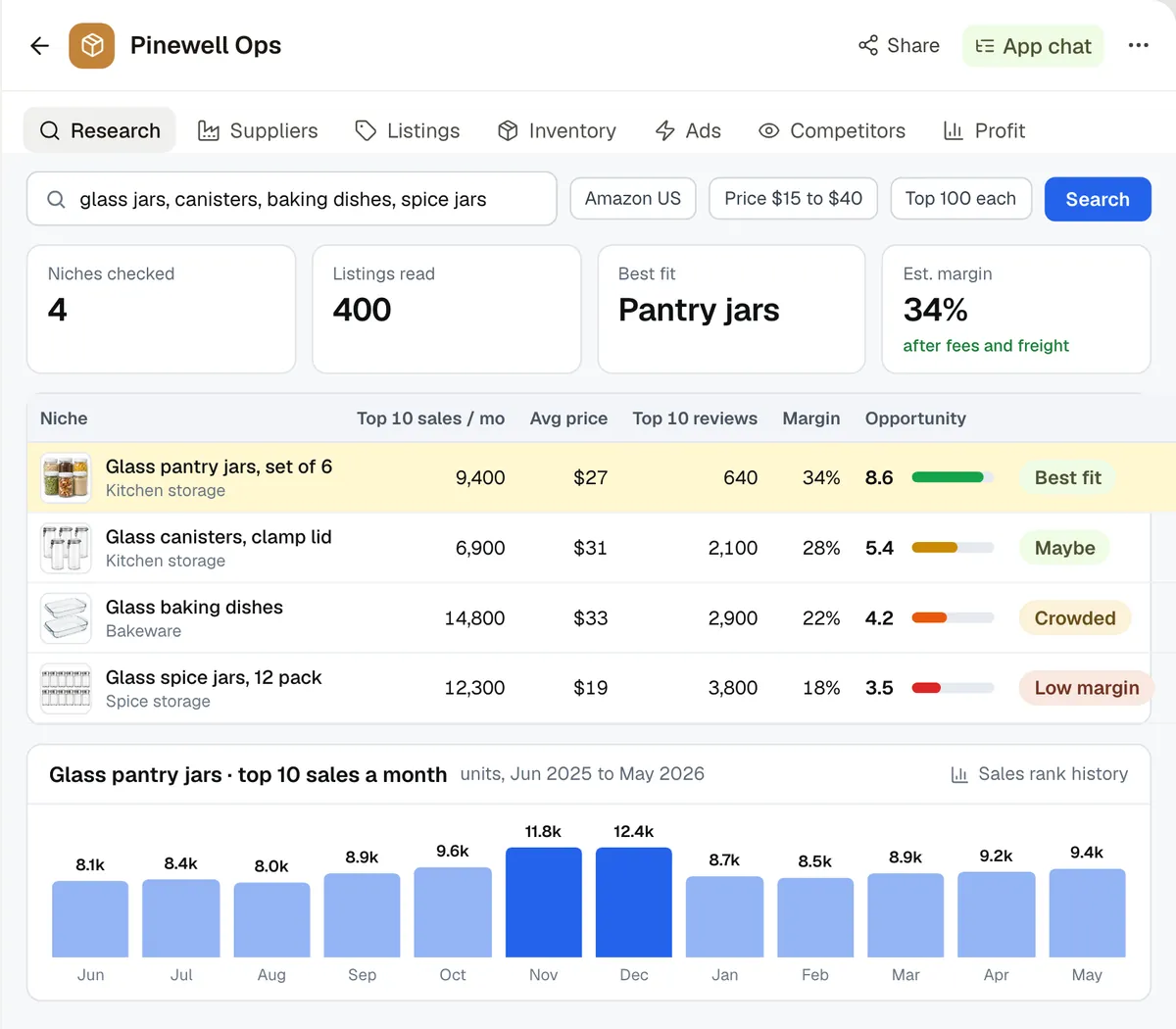
 AtlasAmazon opsAtlas reads the top 100 listings in four niches through ASIN Data API and ranks them by demand, price, reviews and margin.
- Who decides
 MayaMaya picks the product.
- 02Supplier
Get the factory price
- Today
- Quotes spread across an Alibaba inbox, email and a comparison sheet.
- In Kylon
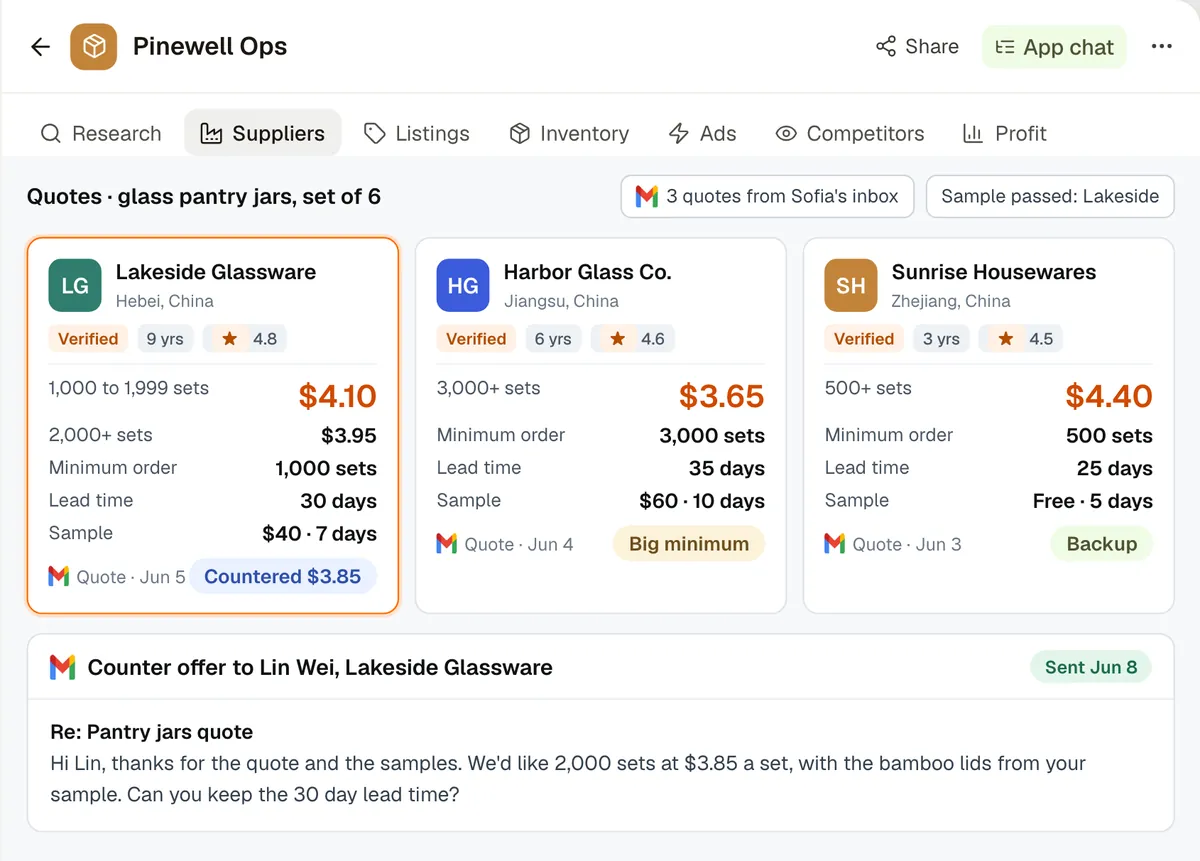
- AtlasAmazon opsAtlas compares three factory quotes from Sofia's Gmail and drafts the counter offer: $3.85 a set for 2,000.
- Who decides
 SofiaSofia sends it.
- 03Listing
Write the product page
- Today
- The Seller Central listing form, and a title that gets suppressed for a banned phrase.
- In Kylon
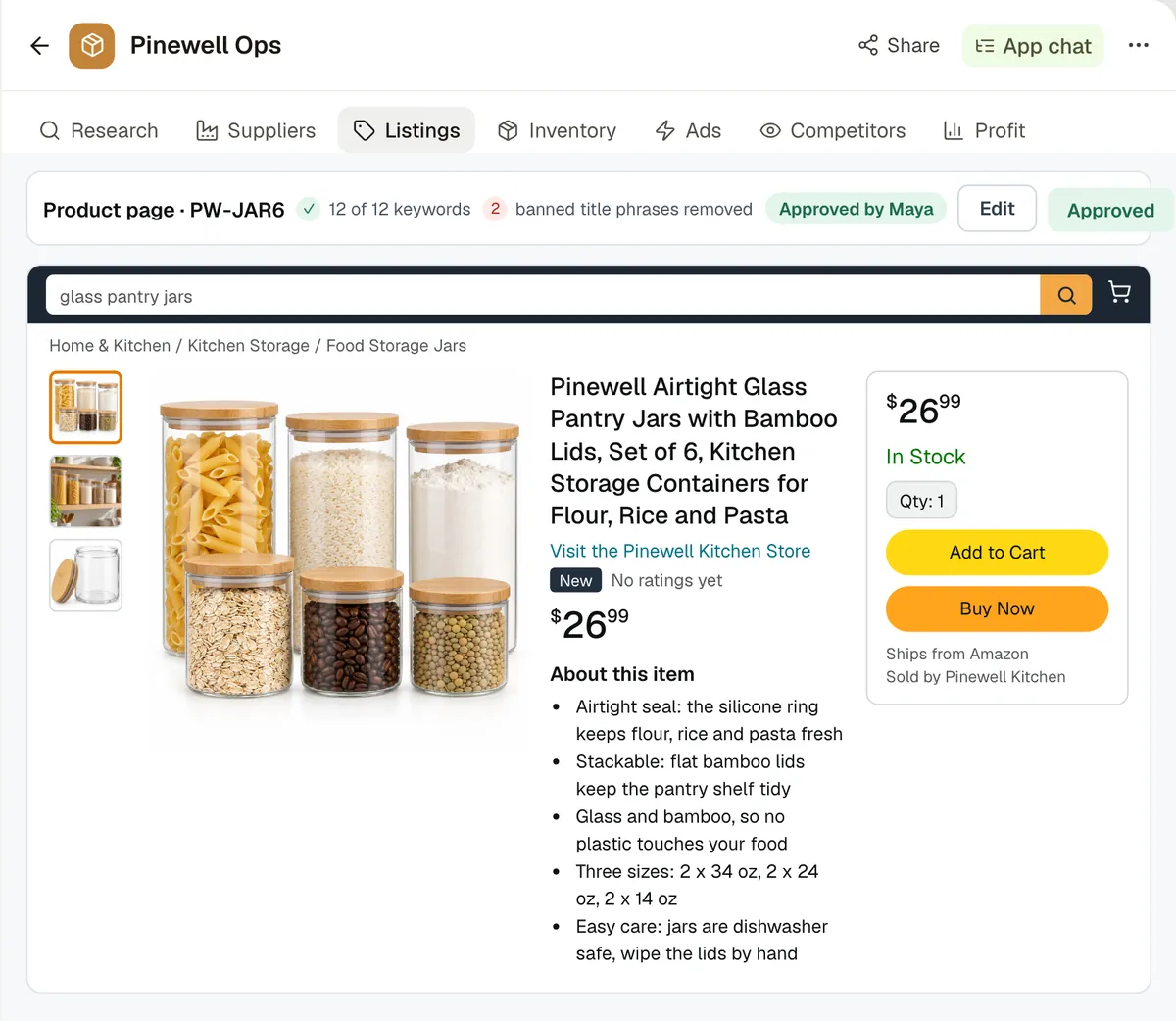
- AtlasAmazon opsAtlas drafts the page in the brand's voice and takes “Best Seller” and “Free Shipping” out of the title.
- Who decides
- MayaMaya approves, then uploads it in Seller Central.
- 04Inventory
Ship to FBA
- Today
- Send to Amazon: units, box counts, weights and labels, then the shipping queue.
- In Kylon
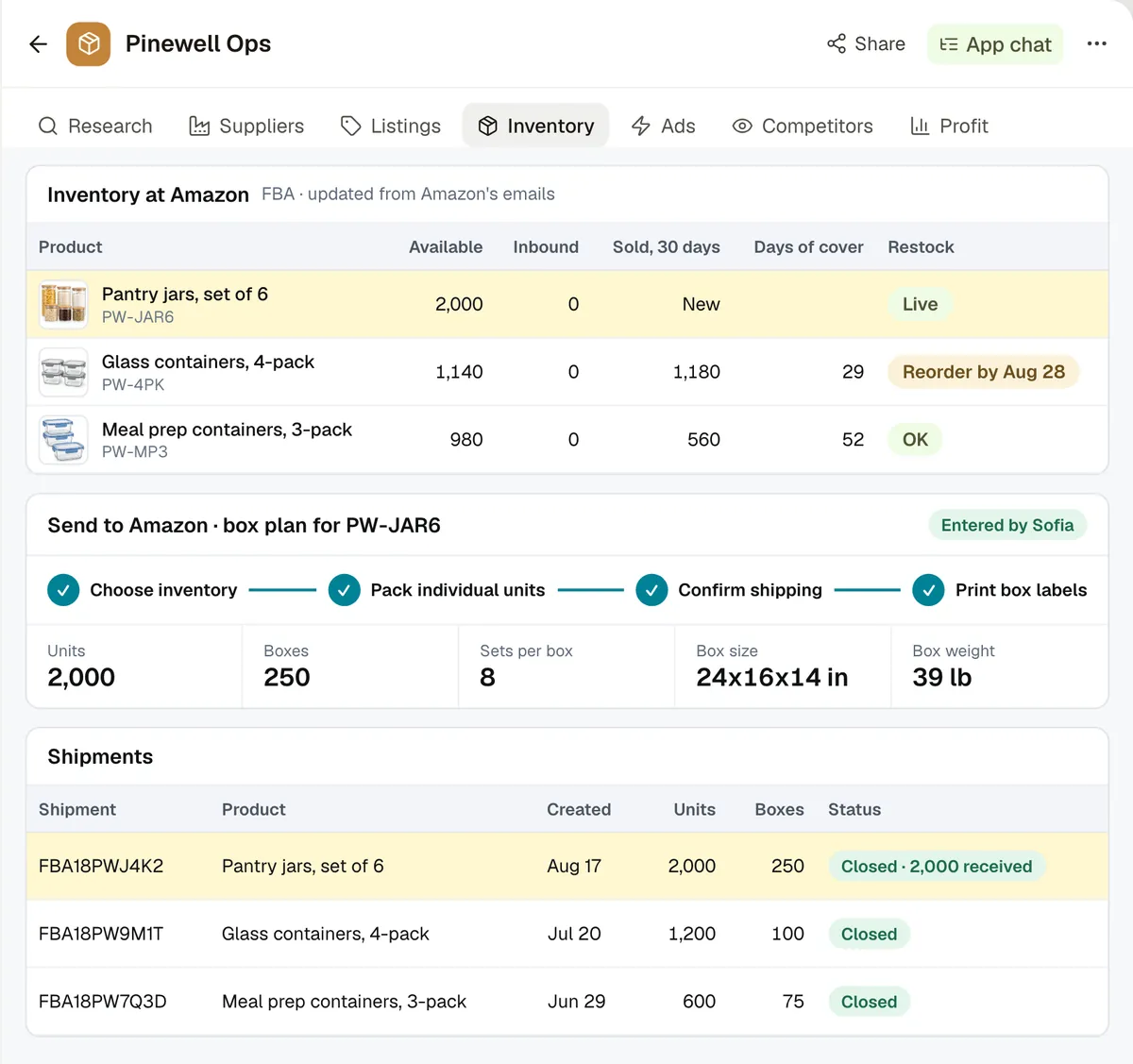
- AtlasAmazon opsAtlas plans 250 boxes of 8 and follows the shipment in Seller Central until all 2,000 sets are checked in.
- Who decides
- SofiaSofia creates the shipment.
- 05Ads
Review the ads
- Today
- The search term report, colored red and green by hand every week.
- In Kylon
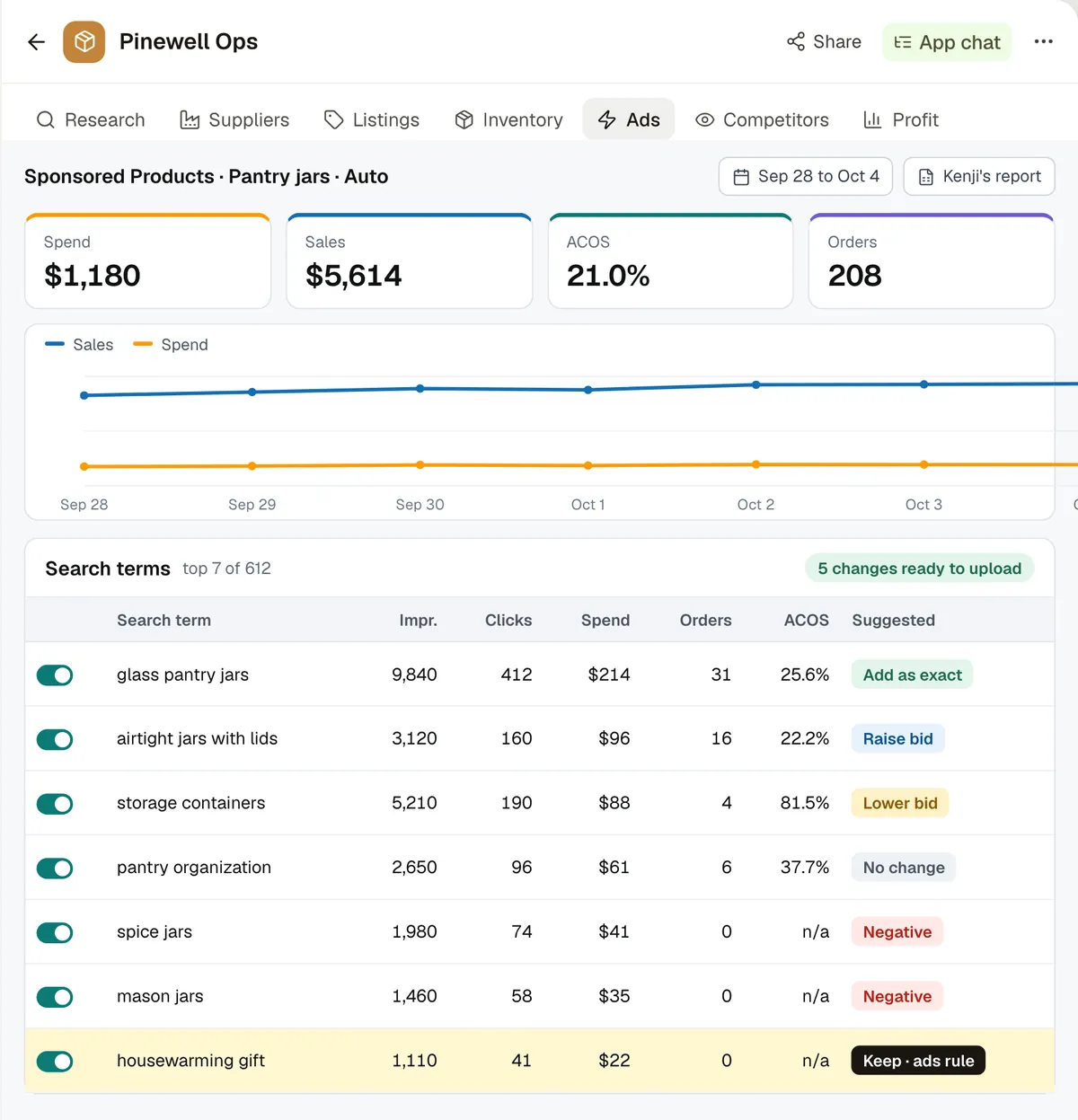
- AtlasAmazon opsKenji asks for the weekly review. Atlas pulls last week's search terms from Amazon Ads and lists six changes, with the numbers behind each one.
- Who decides
 KenjiKenji decides what goes live. His note becomes a rule for next time.
- 06Competitors
Watch competitors and reviews
- Today
- Price charts and review tabs, checked one by one.
- In Kylon
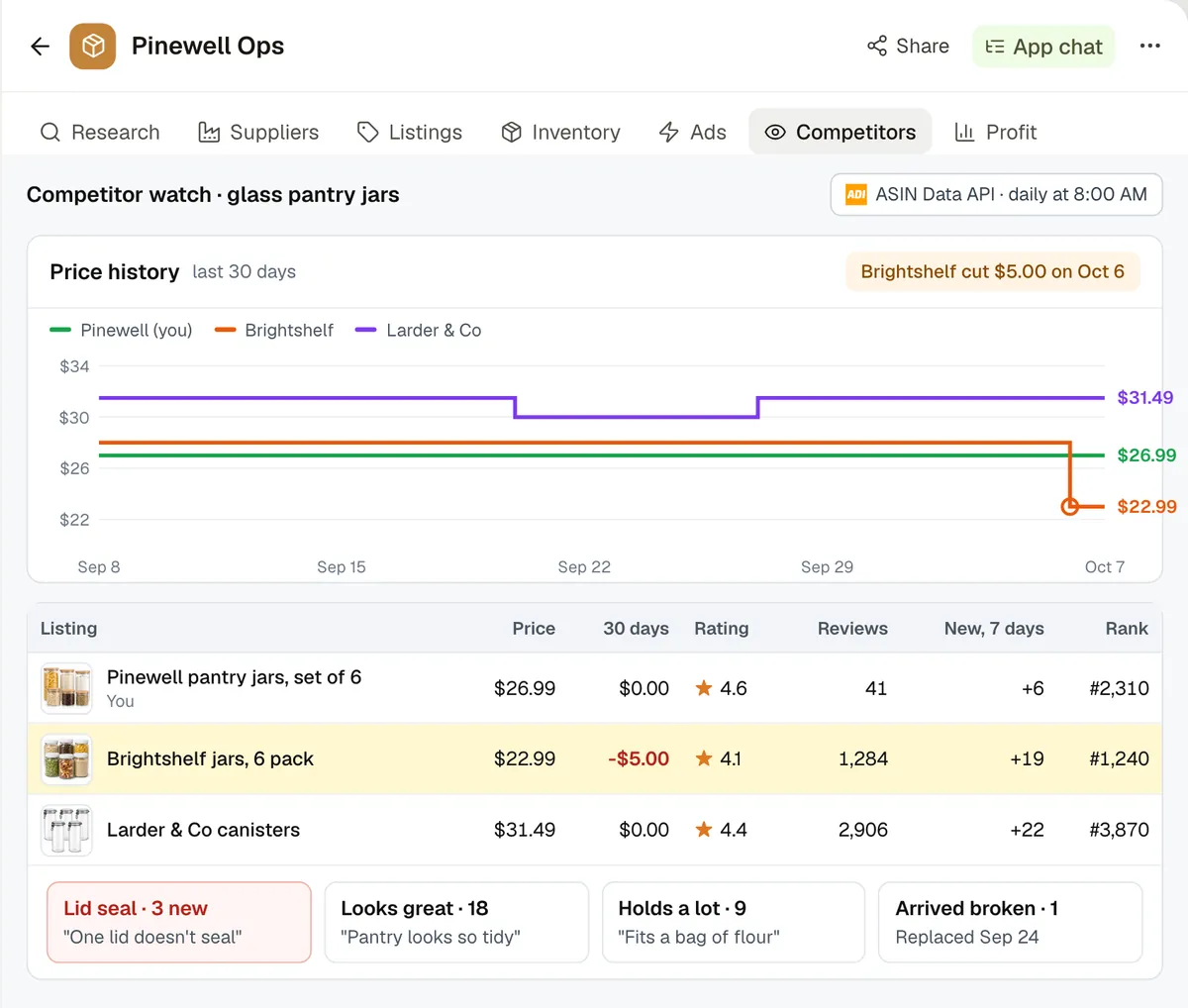
- AtlasAmazon opsEvery morning Atlas checks prices and reviews. A competitor cuts $5 and three reviews say a lid doesn't seal, so Atlas drafts a note to the factory and a reply to a buyer.
- Who decides
- SofiaSofia sends both.
- 07Profit
Know what you made
- Today
- Payments reports and a profit tool, reconciled every week.
- In Kylon
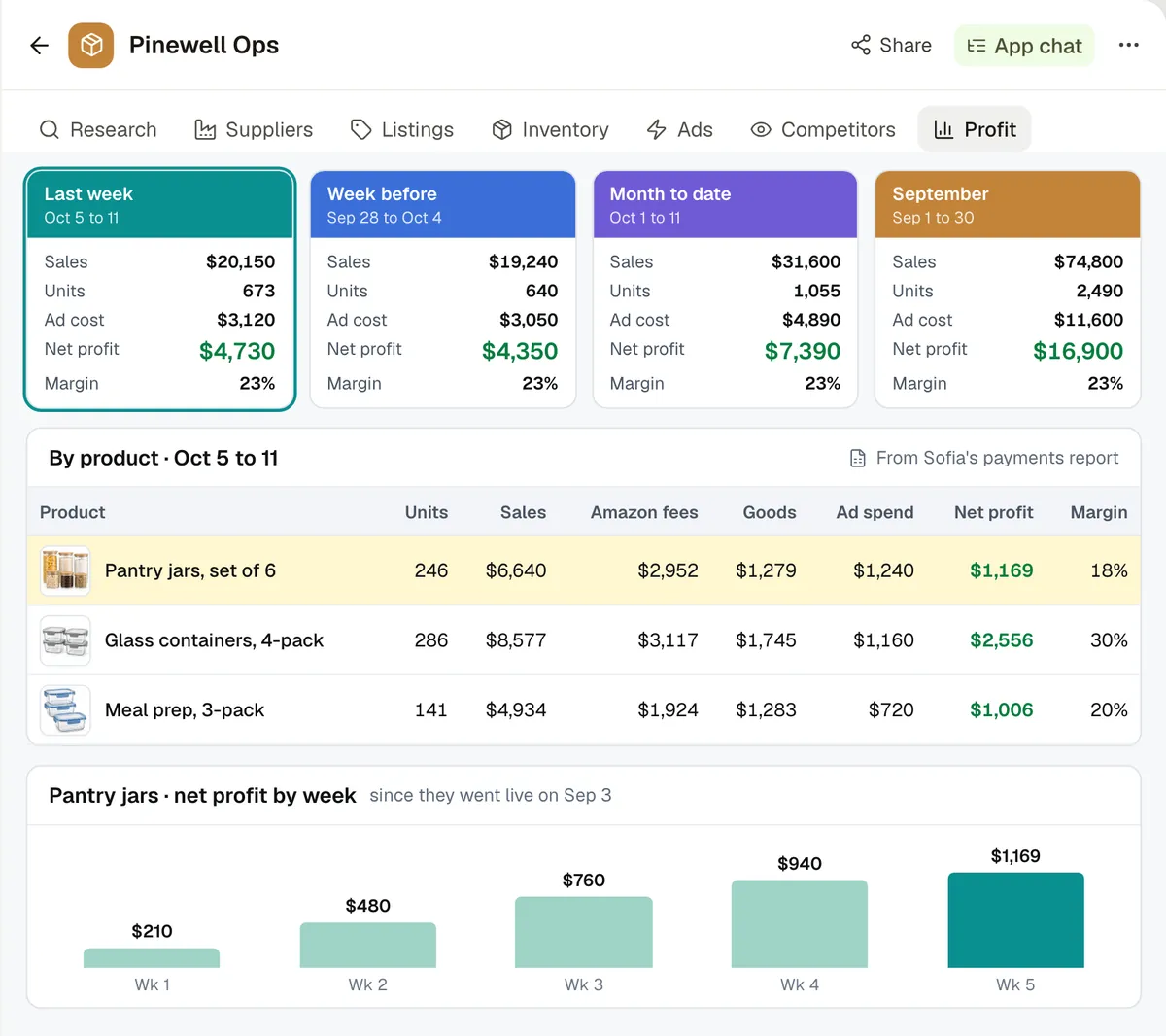
- AtlasAmazon opsSofia asks how much they made. Atlas pulls the payments report from Seller Central: $1,169 net profit on the jars in week 5, up from $940.
- Who decides
- Nothing to approve. The numbers stay in the App for the whole team.
Your Amazon data, your inbox, your team.
Your agent works through the accounts you connect and the reports you already pull. People in the Room see every step and sign off on what goes out.
 Connection
Prices, sales ranks and reviews for any listing, yours and your competitors'.
 Connection
Factory quotes, buyer questions and Amazon's emails. Every draft waits for someone to press Send.
 Connection
Your cost sheet and anything the team still keeps in a spreadsheet.
 Your access
Sales, stock, shipments and payments, through your own Selling Partner API access or the reports you already download.
 Your access
Search terms and campaigns, through your Amazon Ads API access or the report file.
The owner, whoever runs ads and whoever ships. Each one approves the work that is theirs.
Start with last week’s numbers.
- 1Make a Room for your storeInvite whoever runs sourcing, shipping and ads.
- 2Connect what you useGmail and ASIN Data API from Connections. For Seller Central and Amazon Ads, add your API access or drop in last week's reports.
- 3Ask your first question“How did last week go?” Your agent answers in the Room, with an owner on everything that needs a decision.
I sell on Amazon. Set up our store's week in Kylon with me, one step at a time, and show me each result before you move on. 1. Make an App for our store with tabs for Research, Suppliers, Listings, Inventory, Ads, Competitors and Profit. 2. Connect Gmail and ASIN Data API. For Seller Central and Amazon Ads, ask me for API access, or I will upload last week's reports. 3. Every Monday, sum up last week's sales, ad spend and stock, and list only what needs a decision, with an owner on each item. 4. From the search term report, list keywords to add, negatives and bid changes, with the numbers behind each one. 5. Every morning, check competitor prices and new reviews, and draft replies for us to send. Rules: never send an email or change anything on Amazon without approval from the person who owns that item.

Run your Amazon week from one Room.
Start free, connect Gmail and your reports, and let an agent post your first Monday check. Nothing goes out until your team says ok.