From sleeping wiki to living company harness: move your Obsidian vault into Kylon
Your Obsidian vault already describes how your business runs: its departments, its records, its routines and the tools it uses. One prompt for Claude Code moves the vault into Kylon and turns that structure into rooms, roles, tables and connections your whole team can use.

Plenty of small companies run on an Obsidian vault and one person's Claude Code. The notes are good, the folders make sense, and the agent can find anything. The catch is that only one person can ask it. Everyone else on the team still asks that person.
Moving the vault into Kylon fixes that, but copying files is the smaller part of the job. A business vault is a map of the company. This post shows what that map contains, where each part goes in Kylon, and a prompt you can paste into Claude Code to do the move.
The prompt
Paste this into Claude Code or Codex on the computer that has your vault.
I want to move my Obsidian vault into my Kylon workspace, so my team and our Kylon agents can use it as the company's shared knowledge, and so the workspace is set up around how my business actually runs. Work in the steps below and stop for my OK where marked.

Ground rules for the whole job
- Read only the vault folder I confirm. Never change, move or delete my local files.
- Never upload, print or copy any password, API key, token or secret, wherever you find it.
- Use only commands that `kylon workspace help <topic>` lists. Do not guess flags.
1. Kylon CLI
- Run `kylon --version`. If it is missing, install it with
`curl -fsSL https://api.kylon.io/install.sh | sh`
This also starts `kylon login`. I will approve in the browser and pick my workspace.
- Read `kylon workspace help file`, `kylon workspace help room` and `kylon workspace help connection`.
2. Survey the vault (read only)
- Ask me for the vault path if you do not know it. It is the folder that contains `.obsidian/`.
- Folder tree, two levels deep, with a note count per folder.
- File counts by type (.md, images, PDFs, other) and total size.
- Frontmatter: which fields are used (for example status, type, client, project) and their common values.
- Index and map notes: CLAUDE.md, AGENTS.md, README, index, MOC or Home notes.
- Agent setup already in the vault: a `.claude/` folder, especially `.claude/skills/`.
- Structured views: every `.base` file (its `properties` and `filters` are a ready table design) and every note with a ```dataview``` block (the query shows which notes are treated as rows).
- Templates folder: list it, and ignore placeholder values like {{date}} or <% tp... %> when counting frontmatter.
- Folders that look personal (journal, diary, private) or like scratch space (inbox, drafts).
- Secrets scan: list the files that seem to contain passwords, keys or tokens. Show file names only, never the values. These files are held back.
3. Find the tools and systems I already use (read only)
- In `.obsidian/`, read only `community-plugins.json`, `core-plugins.json` and each `plugins/<id>/manifest.json` (name and description). Do NOT open any plugin's `data.json`; it can hold tokens.
- Note how the vault syncs: a `.git` folder, a path inside iCloud, Dropbox, OneDrive or Google Drive, or ask me whether Obsidian Sync is on.
- From the notes, list the business systems I actually use (store, payments, email, chat, calendar, ads, accounting, shipping and so on). Count a tool only with real evidence: an installed plugin that connects to it, or a note about our own account, orders, customers or process in it. A tool that is only mentioned in an article, a clipping, a transcript or a README does not count. Give the evidence note for each.
- For each tool, run `kylon workspace connection search --query "<tool name>"` and mark it: available in Kylon, or not found.
4. Draft a setup plan, then STOP for my OK
Write `import-plan.md` locally with:
a. Departments: one Kylon room per real business area you found, the folders that feed it, and a 3 to 5 line room guideline taken from that area's own notes.
b. Roles: who does what, for people (from team or owner notes) and for agents (one agent per job you see repeated in the notes, with a one paragraph description).
c. Records: folders of notes that track things with a status (clients, suppliers, products, orders, projects). Suggest one table per kind, with its fields taken from the frontmatter. Where a `.base` file or a Dataview query already defines the view, use its fields and filters.
d. Company knowledge: the notes every agent should read first (about the company, offer, customers, tone of voice, rules).
e. Repeatable jobs: SOPs and templates that could become agent skills. Anything in `.claude/skills/` is already a skill; list it as is.
f. Connections: the table from step 3.
g. Left out: secret files, personal folders, `.obsidian/`, `.trash/`, `.git/`, `.DS_Store`, `.gitignore`, files over 50 MB.
Show me the plan and wait. I may move folders between rooms or mark more as private.
5. Upload (after my OK)
- Create one private room called "Obsidian import" with `kylon workspace room create`, and note its room id.
- Upload every file not left out, keeping the folder structure:
`kylon workspace file upload --source "<absolute local path>" --dest "/workspace/rooms/<room id>/vault/<path relative to the vault>"`
- Do not edit note contents. Keep frontmatter, tags and [[wikilinks]] as they are.
- Kylon stores common types (Markdown, text, JSON, YAML, CSV, PDF, images, Office files, mp3, mp4, zip). Upload `.base` files as `<name>.base.yaml` and `.canvas` files as `<name>.canvas.json`; the content is unchanged and readable. If any other type is rejected, list it instead of renaming it.
- Dataview blocks and canvases arrive as text, not live views. That is expected; step c of the plan turns them into tables.
- Write `_index.md` with: one line explaining that [[Note Name]] means the file `Note Name.md` anywhere under `vault/`, and ![[file]] means an attachment with that name; then each folder's notes with title, tags and a one sentence summary. Upload it and `import-plan.md` to the same room.
- Log uploaded, skipped and failed files. Retry each failure once.
6. Invite the connections (after my OK)
- For each tool marked available, run `kylon workspace connection create` with the toolkit and backend from the search result. Each one sends me a setup card in Kylon, and I sign in there myself. Never ask me for a key in this chat.
- Tools not found: just list them for me.
7. Check and report
- Read back `_index.md` and three random notes with `kylon workspace file read --path ...` and confirm they match the local files.
- Confirm uploaded + left out = total.
- Tell me the counts, the room, and which connection cards are waiting for me.
- Last step, which I do inside Kylon: in the "Obsidian import" room, ask the workspace agent to "read import-plan.md and _index.md, then set up the rooms, roles, tables, company knowledge and skills from the plan, showing me each step before it creates anything."
Later updates: run step 5 again for changed notes. Uploading to the same path adds a new version of that file instead of a duplicate.

Your vault is a folder on your computer
An Obsidian vault is a normal folder of Markdown files on your own computer (Obsidian help). Obsidian Sync, iCloud, Dropbox or Git keep copies of that folder on other devices, but the folder on your computer is always there.
That is why the move starts on your machine. Claude Code or Codex reads the folder where it already is, and uploads to your Kylon workspace with the Kylon CLI. Nothing needs to be exported, and no sync service needs to be opened up.
What a business vault already says about the company
The business vaults people share publicly look remarkably alike (Thomas Scott, Caspian Almerud, Araptus, Christian Monge). Each layer has a natural home in Kylon:
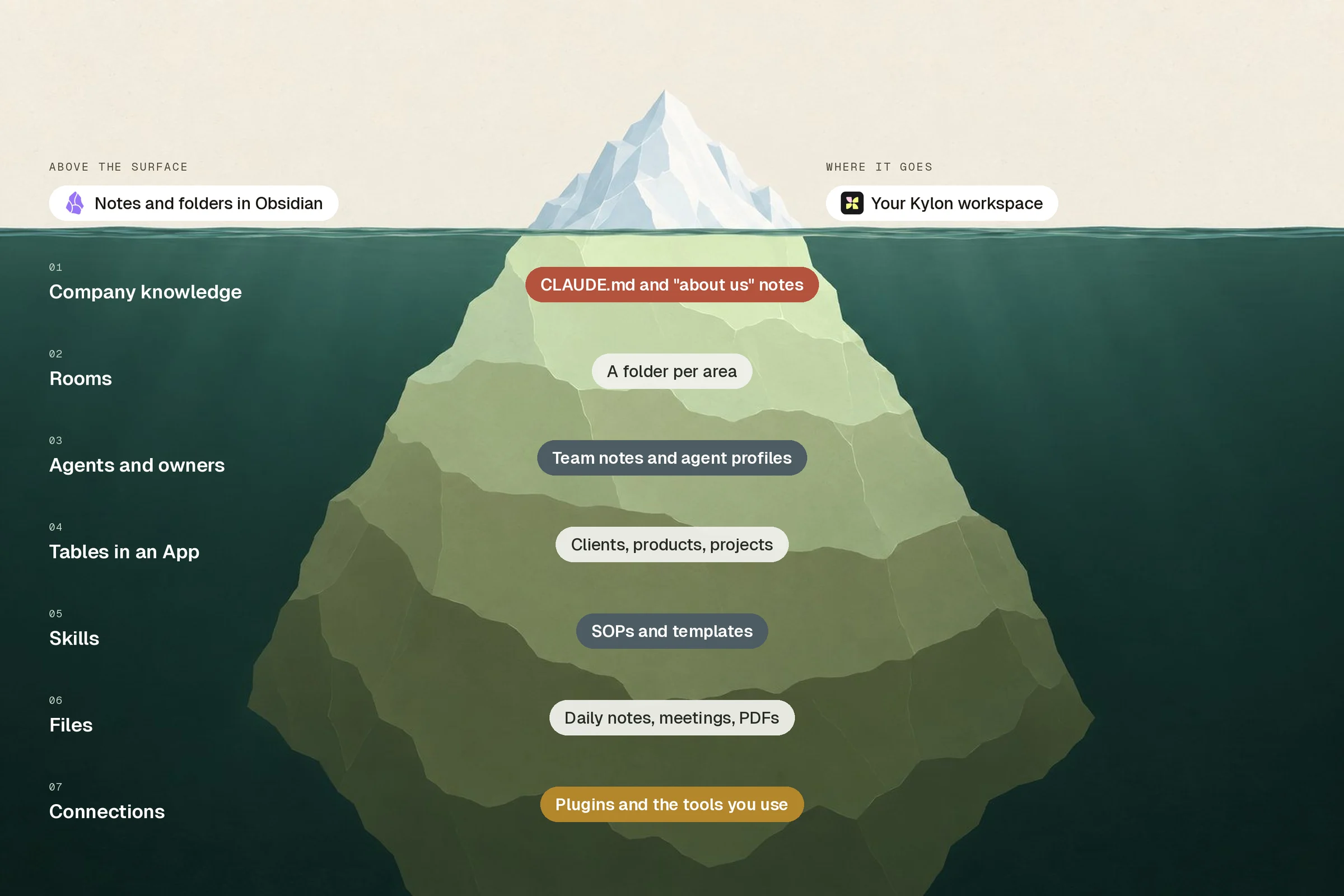
| In the vault | What it tells us | Where it goes in Kylon |
|---|---|---|
| CLAUDE.md, context or "about us" notes, tone of voice | What you sell, to whom, how you talk, your rules | Company knowledge that every agent reads first |
| A folder per area: sales, marketing, support, operations | Your real departments | One room per department, with a short guideline taken from that folder's notes |
| Team notes, agent profiles, who owns what | Roles, for people and for agents | Agents with their own description and access, and a named owner for each room |
| Clients, suppliers, products or projects with a status field | Records that move through stages | Tables in an App, where each record has its own thread |
| SOPs and templates | Jobs you repeat | Skills your agents load when the job comes up |
| Daily notes, meeting notes, PDFs | History and decisions | Files in the matching room, which agents can search |
| Plugins and the tools your notes mention | The systems you already run on | Connections you sign in to once |
So the prompt below does not stop at uploading. It reads the vault, drafts a setup plan from it, and waits for you to approve that plan.
Your tools come along too
Most vaults reveal the rest of the stack: community plugins in the vault settings, and notes that keep mentioning the store, the inbox, the chat app or the ad account. The prompt lists those tools and checks each one against Kylon's connections. For each match it sends you a setup card in Kylon, and you sign in there yourself. Kylon has connections for tools such as Shopify and WhatsApp Business; anything without a match is listed so you can decide what to do with it.
Keys and passwords never travel. The prompt never opens the files where plugins keep their tokens, and any note that looks like it contains a password or key is held back and shown to you by name only.
What happens, step by step
- Survey. Claude Code reads the folder tree, the fields in your notes' frontmatter and your index notes, and flags anything that looks personal or secret. Nothing leaves your computer yet.
- Plan. You get one page: the rooms it would create, who owns what, which folders become tables, which notes become company knowledge, which SOPs become skills, and which tools can be connected. You edit it before anything happens.
- Upload. Every approved file goes into a private "Obsidian import" room with its folders intact, plus an index that tells agents how your links work.
- Connections. A setup card for each matched tool appears in Kylon. You sign in once.
- Set up. The workspace agent in Kylon reads the plan and builds the rooms, tables, knowledge and skills one step at a time, asking before each one.
A few things worth knowing
Links. Your notes keep their [[wikilinks]] as written. In Kylon they are plain text, and the index file tells every agent how to follow them, so an agent asked about a client can still walk from the client note to the pricing note it links to.
Personal notes. If your vault mixes a journal with company notes, mark those folders as private in the plan and they stay on your computer.
Keeping Obsidian. You can keep writing in Obsidian. When notes change, run step 5 again: a file uploaded to the same path becomes a new version of the same file, not a copy.
After the move. The vault was where your Claude Code looked things up. In Kylon, the same knowledge sits next to the rooms, tables and connections your team works in, and every agent and every teammate can ask it.
Your first company harness. Where humans and agents run your business together.