
Your workspace's credit balance and daily usage are on the Billing and usage page. It shows how many credits are left, how many were used on each of the last 30 days, and, for workspace admins, which people, Rooms, Agents and Automations used them. Today's usage is the last bar in the chart, and admins can open it to see what has used credits so far today.
Open Billing and usage
- Select your profile picture at the bottom of the left sidebar.
- Select Billing and usage.
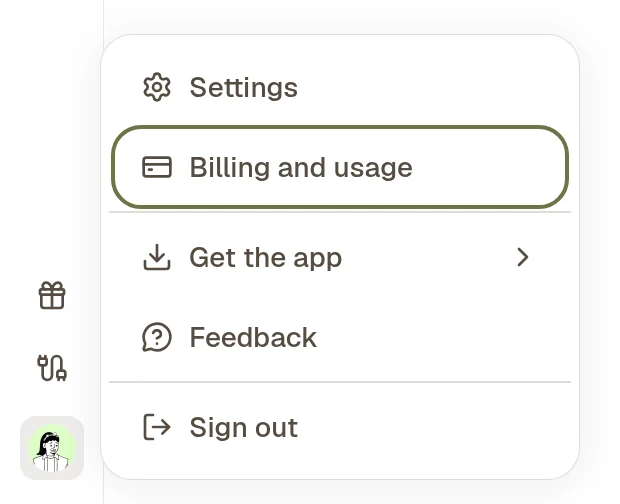
You can also open it from Settings: find the Workspace section and select Billing and usage. In a phone browser, tap More in the bottom bar, then Billing and usage.
The page is titled Billing & usage. It has two parts: Workspace Balance at the top and Usage below it.
See how many credits are left
Workspace Balance shows the credits your workspace can still use, as one number. It adds up every kind of credit and is rounded down to whole credits.
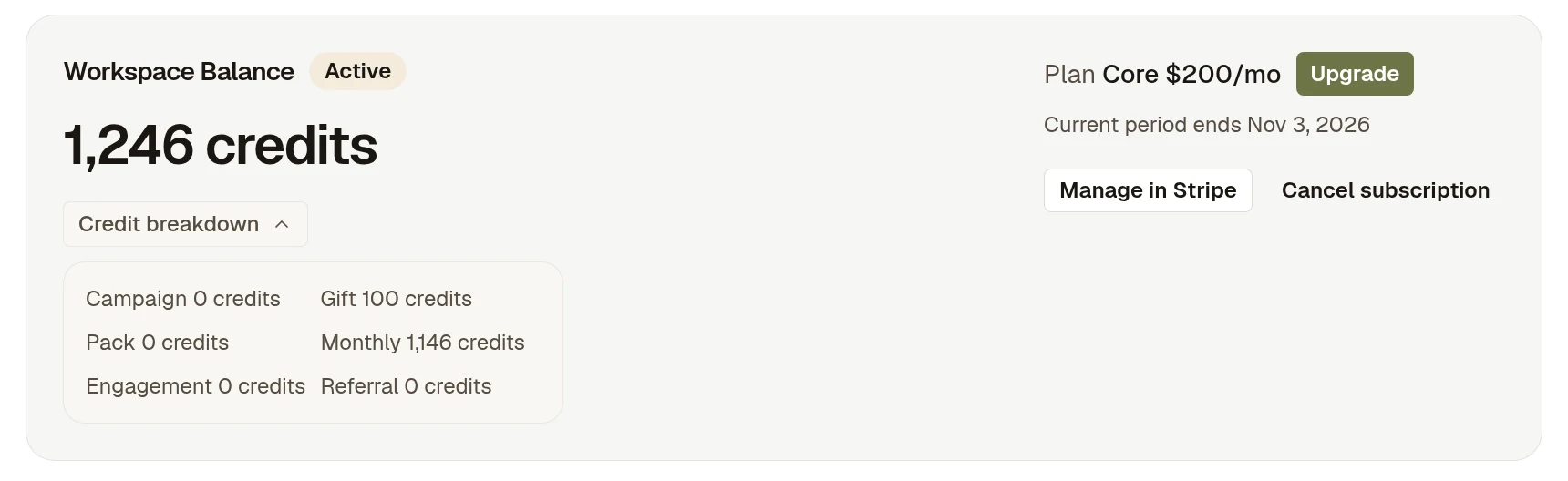
- The label next to the heading shows the workspace's state: Active, Credit exhausted, Suspended or No subscription.
- Select Credit breakdown to see where the credits come from:
- Monthly: credits from your plan for the current billing period.
- Pack: credits from credit packs you bought.
- Gift, Campaign, Engagement and Referral: credits Kylon added, for example from a promotion or from people you invited through Invite and earn.
- Current period ends shows when the billing period ends and your plan's monthly credits renew. Unused monthly credits do not roll over.
- Kylon uses the credits that expire soonest first.
See how many credits you used today
-
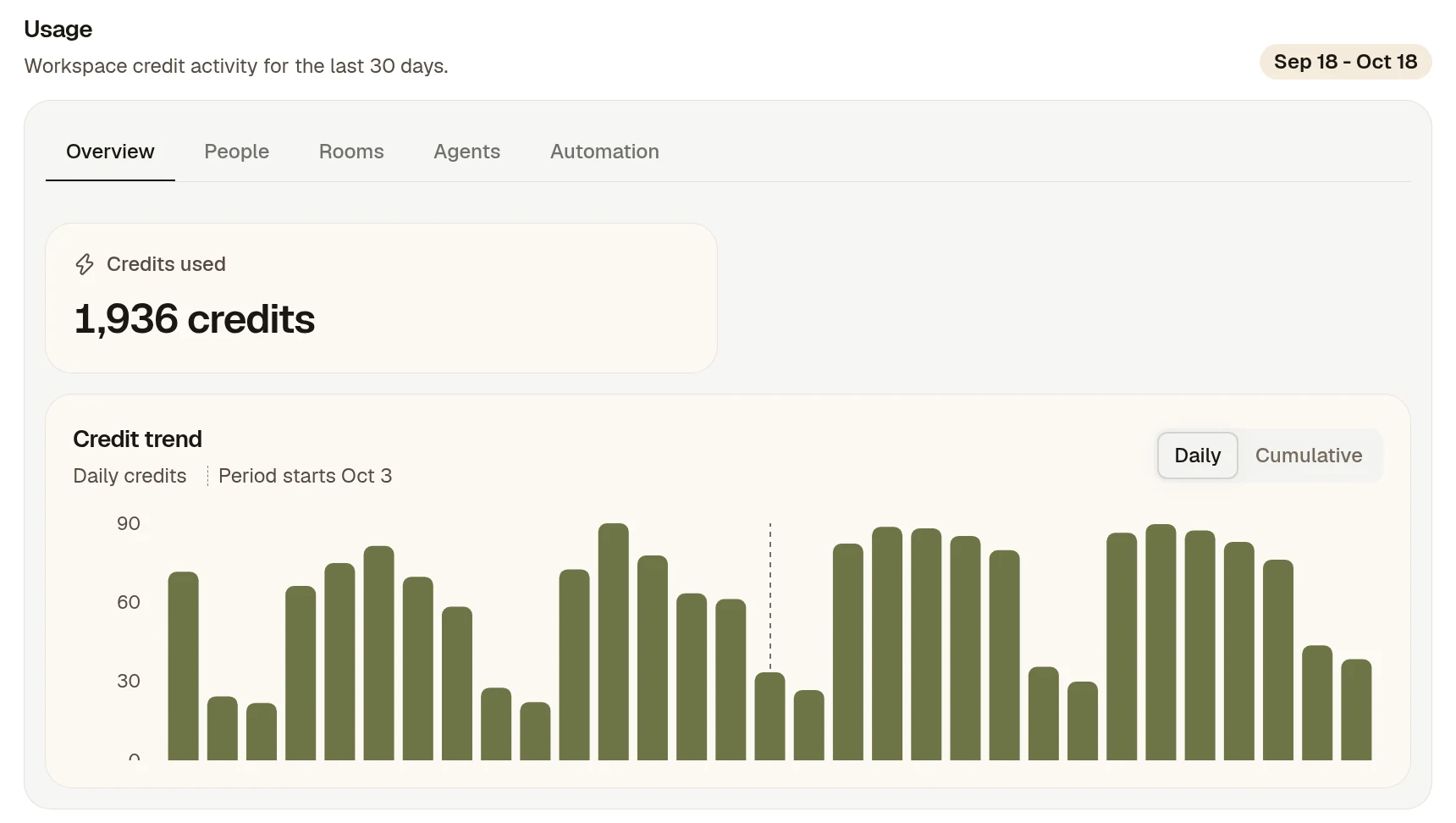
Under Usage, stay on Overview. Credits used is the total for the last 30 days, shown in the date range at the top right.
-
In Credit trend, each bar is one day. The last bar is today so far. Point to a bar to see the exact number of credits for that day.
-
Select Cumulative to see a running total instead. It starts again at zero on the day your billing period started, marked with a dashed line labeled Period starts. Compare it with your plan's monthly credits to see how fast you are using them.
-
If you are a workspace admin, select today's bar to see what used the credits. A panel opens with the day's Credits and Messages. Under Breakdown by, choose People, Rooms, Agents or Automation.
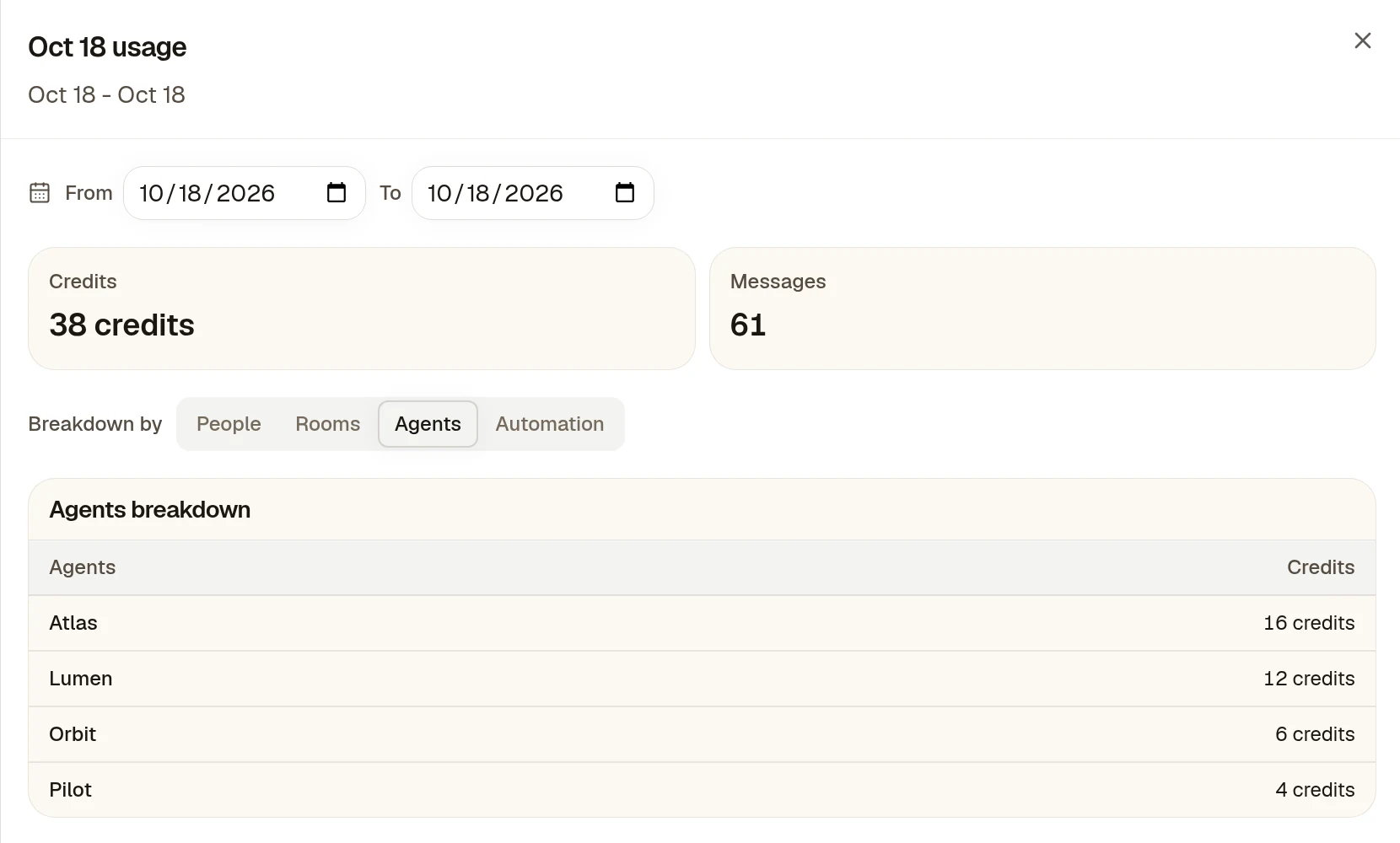
In the panel you can:
- Select a row to break it down further. For example, select an Agent, then choose Rooms to see where it used its credits.
- Change From and To to look at a longer period, up to 180 days back.
Things to know:
- Days follow UTC time. In US Pacific time, a new day's bar starts at 5 p.m. (4 p.m. in winter).
- The page does not update by itself. Reload it to see the latest numbers.
- Credits used can show decimals, for example <0.01, while the balance shows whole credits.
What members and admins can see
| Members | Workspace admins | |
|---|---|---|
| Credit balance and breakdown | Yes | Yes |
| Overview: credits used and the daily chart for the whole workspace | Yes | Yes |
| People, Rooms, Agents and Automation tabs | No | Yes |
| What used credits on a given day | No | Yes |
| Buy credits, Upgrade and payment settings | No | Yes |
The People, Rooms, Agents and Automation tabs show the last 30 days, 10 rows at a time. People and Rooms also show the number of messages. Select any row to open the same breakdown panel. To change roles, see What admins and members can do.
See what an Automation spends
Automations run on their own, so they are worth checking first when usage climbs.
- In the Room, select Automations at the top and open the Automation. Each finished run shows its credits, and the summary shows the credits spent in the last 7 days.
- Workspace admins can also open the Automation tab on Billing and usage, select an Automation, and see its runs, credits and schedule. Select Pause to stop it from running again, or Stop on a run that is still going.
To cap what an Automation can spend each day, week or month, see Limit and track credit usage.
Get usage hour by hour
The chart shows one bar per day. For hourly numbers, use the Kylon CLI. This command saves today's usage, hour by hour, as a CSV file:
kylon workspace billing usage export --from 2026-10-18 --granularity hour --format csv
Replace the date with today's date in UTC. Hourly data covers up to 14 days at a time. Without --granularity, you get one row per day for the last 30 days.
You can also ask an Agent in your workspace, for example: "How many credits have we used today, broken down by Agent?" Agents read the same usage data. The breakdown by person, Room, Agent and Automation is only available when a workspace admin asks.
Which Agents use workspace credits
Agents that Kylon runs use workspace credits for everything they do. Claude Code or Codex running on your own computer uses your own Claude or OpenAI account for its model use, so that part does not appear here. Paid tools any Agent uses through Kylon, and all Automation runs, do use workspace credits. See Limit and track credit usage for the full breakdown.
When credits run low
You do not need to keep the page open to notice. When credits are low, everyone in the workspace sees Credits running low at the top of the sidebar, with Top up.
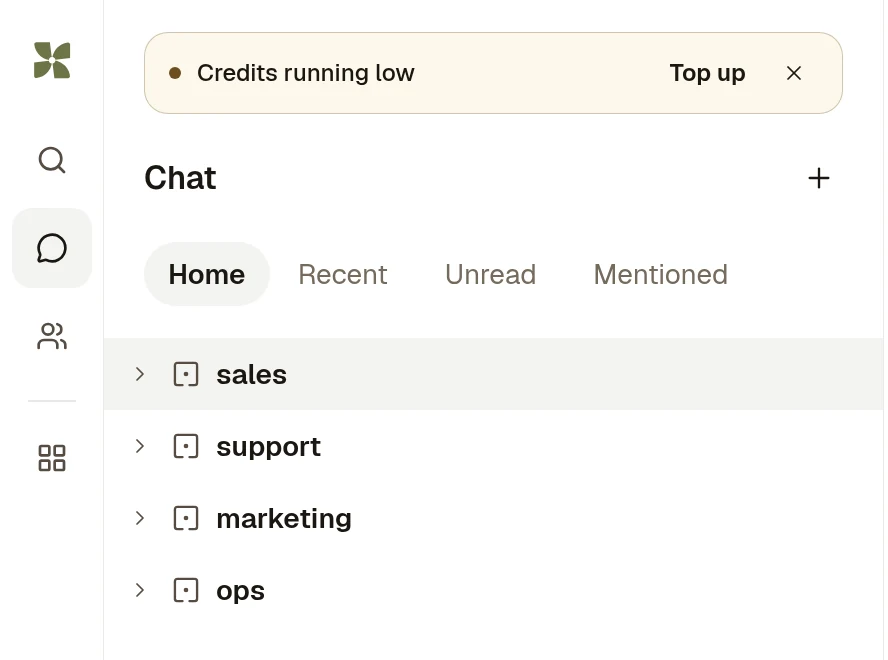
- Workspace admins also get a reminder, Credits running low, with the number of credits left and a Top up credits button.
- When credits run out, the sidebar shows Credits exhausted. Agents that Kylon runs stop replying until you top up or the plan renews. Claude Code and Codex on your own computer keep replying.
- To add credits, a workspace admin selects Buy credits next to Credit breakdown, if your plan offers credit packs, or Upgrade to change plans.
If an Agent stopped replying, see An Agent is not responding or stopped mid-task.
Related
- Limit and track credit usage: Set budgets on Automations and lower what Agents cost.
- Get started with the Kylon CLI: Install the CLI to export usage.
- What admins and members can do: Who sees the full usage breakdown.
- Pricing: Plans and monthly credits.