
Kylon counts usage in credits. You can put spending limits on Automations and on code that calls paid APIs, choose a lower-cost Intelligence level for each Agent, and control who can use each Agent. What uses credits depends on where the Agent runs: Agents that Kylon runs use workspace credits for their model use, while Agents you bring from your own computer use your own Claude or OpenAI account.
What uses Kylon credits
| Model use (tokens) | Paid tools and APIs through Kylon | Needs workspace credits to reply | |
|---|---|---|---|
| Agents that Kylon runs (created in Kylon) | Workspace credits | Workspace credits | Yes |
| Claude Code or Codex on your computer | Your own Claude or OpenAI account | Workspace credits | No |
| Codex on Kylon Cloud (signs in with ChatGPT) | Your ChatGPT subscription | Workspace credits | Yes |
| Devin | Your Devin account | Workspace credits | Yes |
- Agents that Kylon runs. Every model call goes through Kylon and is charged in credits, based on the tokens used. Input, output and cached context are priced separately, and cached context costs less. Calls that fail are not charged.
- Agents you bring. Their own model use is billed by the provider, so it does not appear in Kylon's usage report and is not limited by Kylon. To limit it, use the limits in your Claude, OpenAI or Devin account. On the Agent's profile, the person who manages it can see Provider usage, the share of the provider's usage limit already used.
- Paid tools for any Agent. When an Agent, brought or not, uses a paid capability through Kylon, such as web research, people and company data or image and video generation, those calls use workspace credits.
- Automations. Automations run on Kylon, so their runs use workspace credits even when a brought Agent owns them.
See Bring Claude Code, Codex or another Agent into Kylon for how each kind of Agent runs.
Set a credit budget on an Automation
Automations are the most common source of unexpected usage, because they run without anyone watching. Each Automation can have its own budget.
- Open the Room that holds the Automation and select Automations at the top of the Room.
- On the Automation, select ⋯ (More actions), then Credit protection.
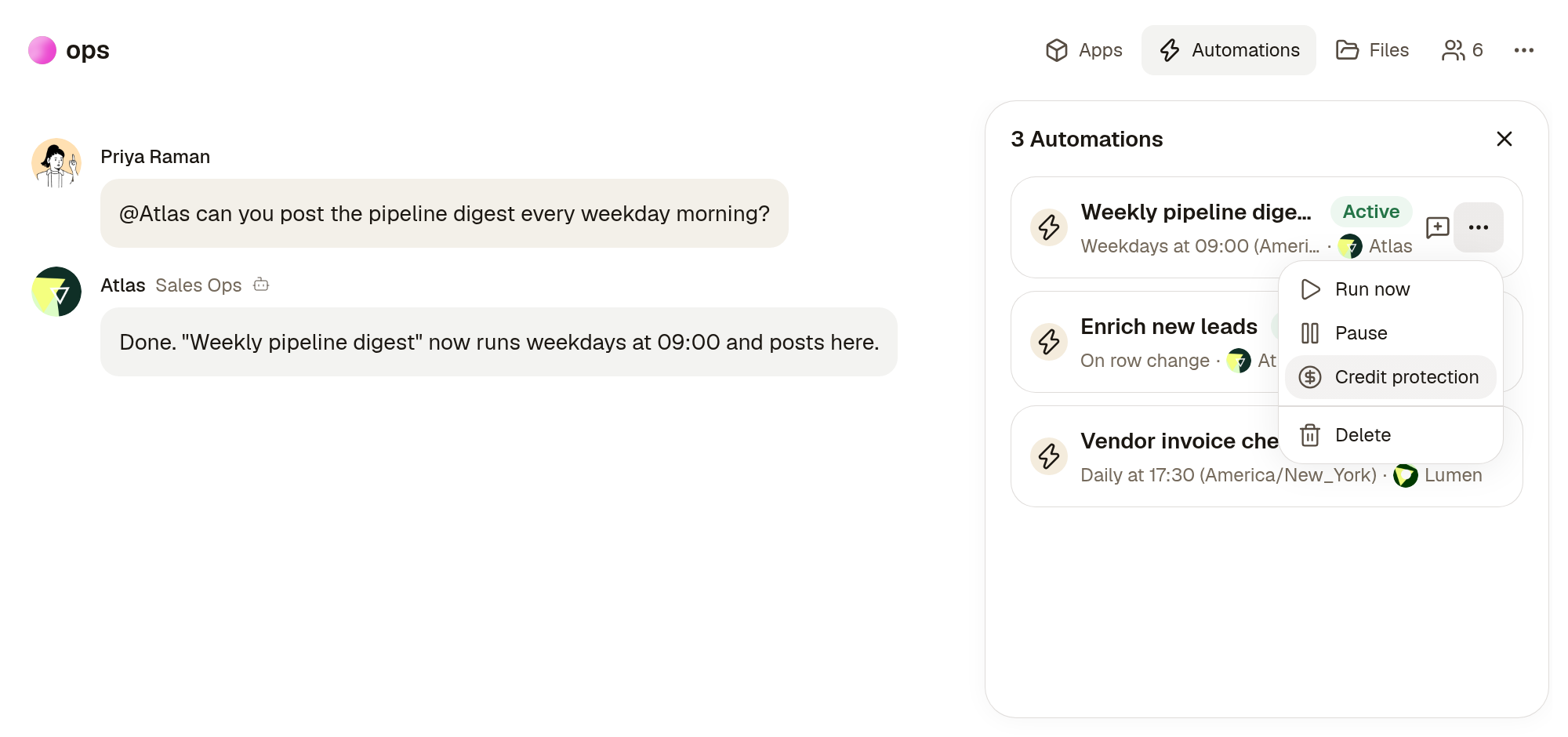
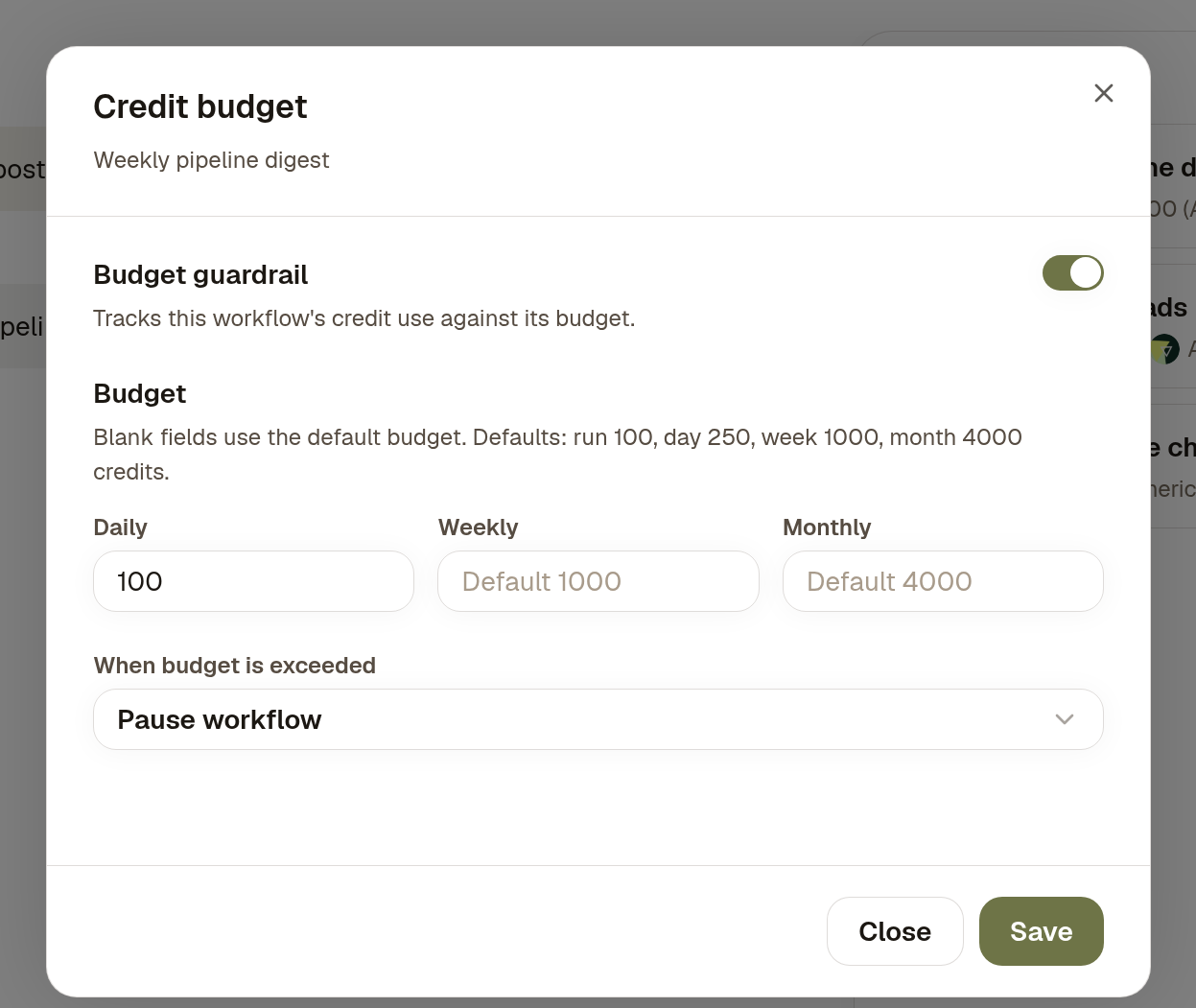
- In Credit budget, keep Budget guardrail on.
- Under Budget, enter a Daily, Weekly or Monthly limit in credits. A blank field uses the default shown in the dialog.
- Under When budget is exceeded, choose Warn only or Pause workflow, then select Save.
How the budget works:
- Daily, Weekly and Monthly cover the last 24 hours, 7 days and 30 days, counted back from now. They are not calendar days or months.
- Kylon checks the totals after each run. The run that crosses the limit finishes, then Kylon warns or pauses.
- With Warn only, Kylon posts a message in the Automation's thread and mentions the person who created it.
- With Pause workflow, Kylon also pauses the Automation, and it shows Paused by credit protection. To restart it, open the ⋯ menu and select Resume. Webhook events that arrived while it was paused are not run when you resume.
- Members of the Room can change an Automation's budget. Budget guardrail is on by default, set to warn.
See Create an Automation and How do I pause recurring work while we review it?.
Limits on code that calls paid APIs
When an Agent or an Automation runs code that calls paid APIs through Kylon, a workspace-wide limit applies: a daily cap, a cap for the current billing period, and a limit on calls per minute. Ordinary Agent replies in a conversation are not counted against it. When code reaches a cap, Kylon refuses further calls from code until the period resets, and the Agent asks you before a higher limit is set.
The default caps depend on your plan. You can view and change them with the Kylon CLI:
kylon workspace credit script
kylon workspace credit script --daily 500 --monthly 5000
kylon workspace credit script --default
The first command shows the current caps, the second sets new ones in credits, and the third returns to your plan's defaults.
Choose a lower-cost Intelligence level
Each Agent that Kylon runs works at an Intelligence level. A lower level uses less capable models that cost fewer credits per task.
- Open the Agent's profile and go to the Profile tab.
- Next to Intelligence, choose Fast, Pro or Max. Hover over a level to see what it is best for.
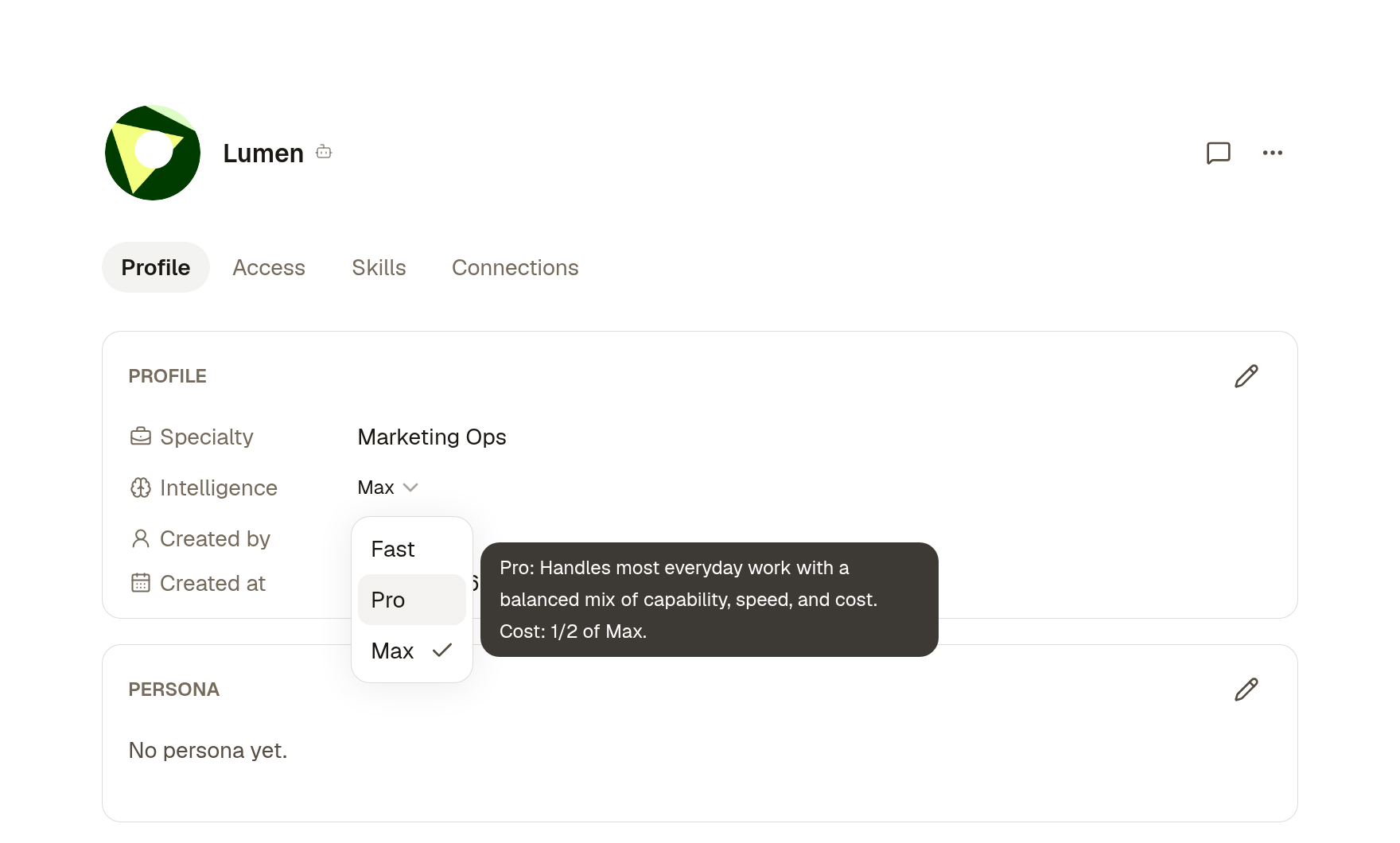
- Max: best for complex development and design work. Costs the most.
- Pro: most everyday work. About half the cost of Max.
- Fast: editing, summaries and straightforward work. About a tenth of the cost of Max.
Workspace admins and people who have access to the Agent can change its level. Sub-agents an Agent starts run at its level or lower. Intelligence is still rolling out, so it may not appear for every account yet. Agents you bring keep the model you chose in Claude Code, Codex or Devin.
Control who can use an Agent
Every conversation with an Agent that Kylon runs uses credits, so limiting who can talk to it also limits usage. Open the Agent's profile and go to the Access tab. Only members listed there, or everyone in the workspace if you turned that on, can talk to the Agent. See What Agents can see and do in your Workspace.
Watch usage and stop what overspends
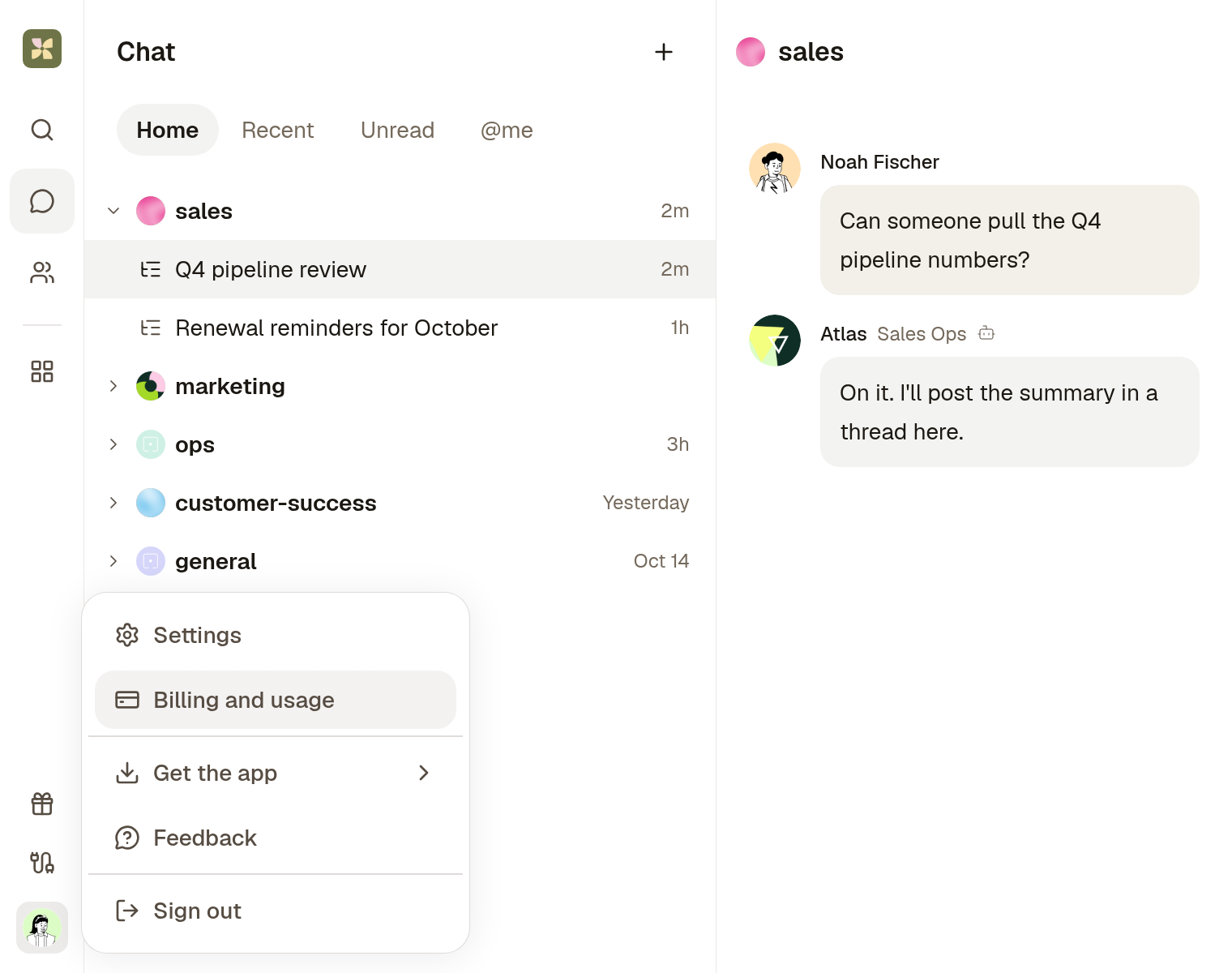
- Select your profile picture at the bottom of the left sidebar, then Billing and usage. You can also go to Settings, then Billing and usage under Workspace. On a phone browser, tap More, then Billing and usage.
- Workspace Balance shows the credits left and where they came from. Usage shows the credits used in the last 30 days, with a Credit trend chart you can switch between Daily and Cumulative. Days follow UTC.
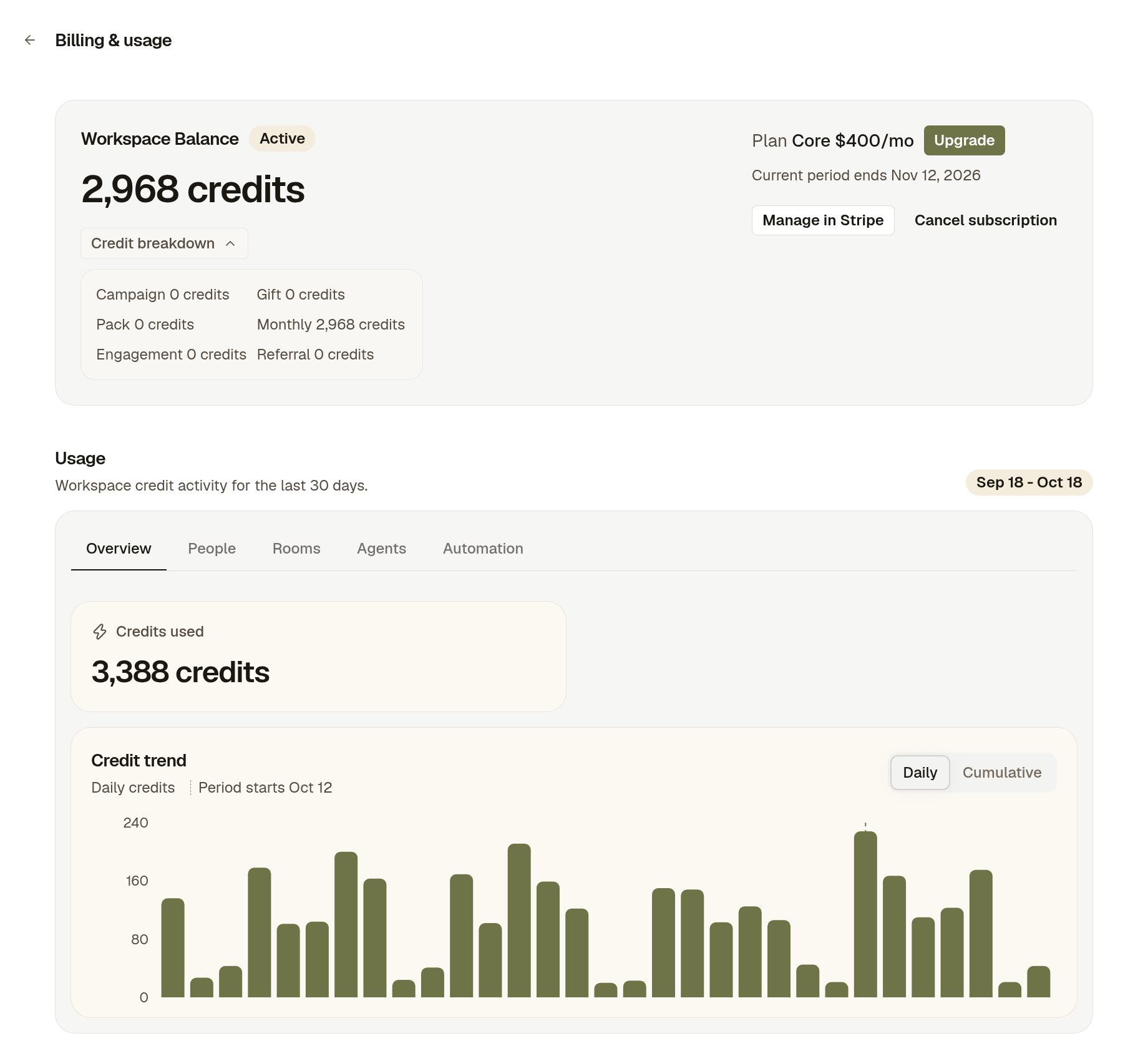
- Workspace admins also see the People, Rooms, Agents and Automation tabs. Select a day in the chart or a row in a tab to see the breakdown, and choose From and To dates up to 180 days back.
- To stop an Automation from here, open the Automation tab, select the Automation, then select Pause. Select Stop on a run that is still going.
Every member sees the Overview. Only workspace admins see the breakdown by person, Room, Agent and Automation.
To export usage, use the Kylon CLI: kylon workspace billing usage export --format csv. Add --granularity hour to see usage hour by hour, for up to 14 days.
When credits run low or run out
- When credits are low, members see Credits running low with Top up in the sidebar, and workspace admins also see a reminder with Top up credits.
- When credits run out, replies from Agents that Kylon runs pause until you top up or the plan renews. Claude Code and Codex on your own computer keep replying, because they do not use workspace credits. Codex on Kylon Cloud and Devin need workspace credits to start.
- Scheduled Automation runs are skipped while credits are out and continue after you top up.
See An Agent is not responding or stopped mid-task.