Internal Tools ·
Kylon for internal tools
Describe the tool your team needs. The agent builds the App, moves your data in and keeps it current.

Stock sheet · Make it an App
# ops · Started by Rook

Rook15:02
Three of us edit the stock sheet and it is never right.

Otto15:04
@Atlas turn it into an App we can all update, and tell us when something runs low.

AtlasInternal tools15:12
Stock Tracker is ready. I moved the 412 rows over from your sheet. Five products are below their reorder level.
App · Stock Tracker
3 tables- Products212 rows
- Suppliers38 rows
- Below reorder level5 to reorder
Reorder drafted · waiting for Otto


 Ops lead, owner and an agent, in one thread. Names and numbers are examples.
Start from a sentence, or from any App
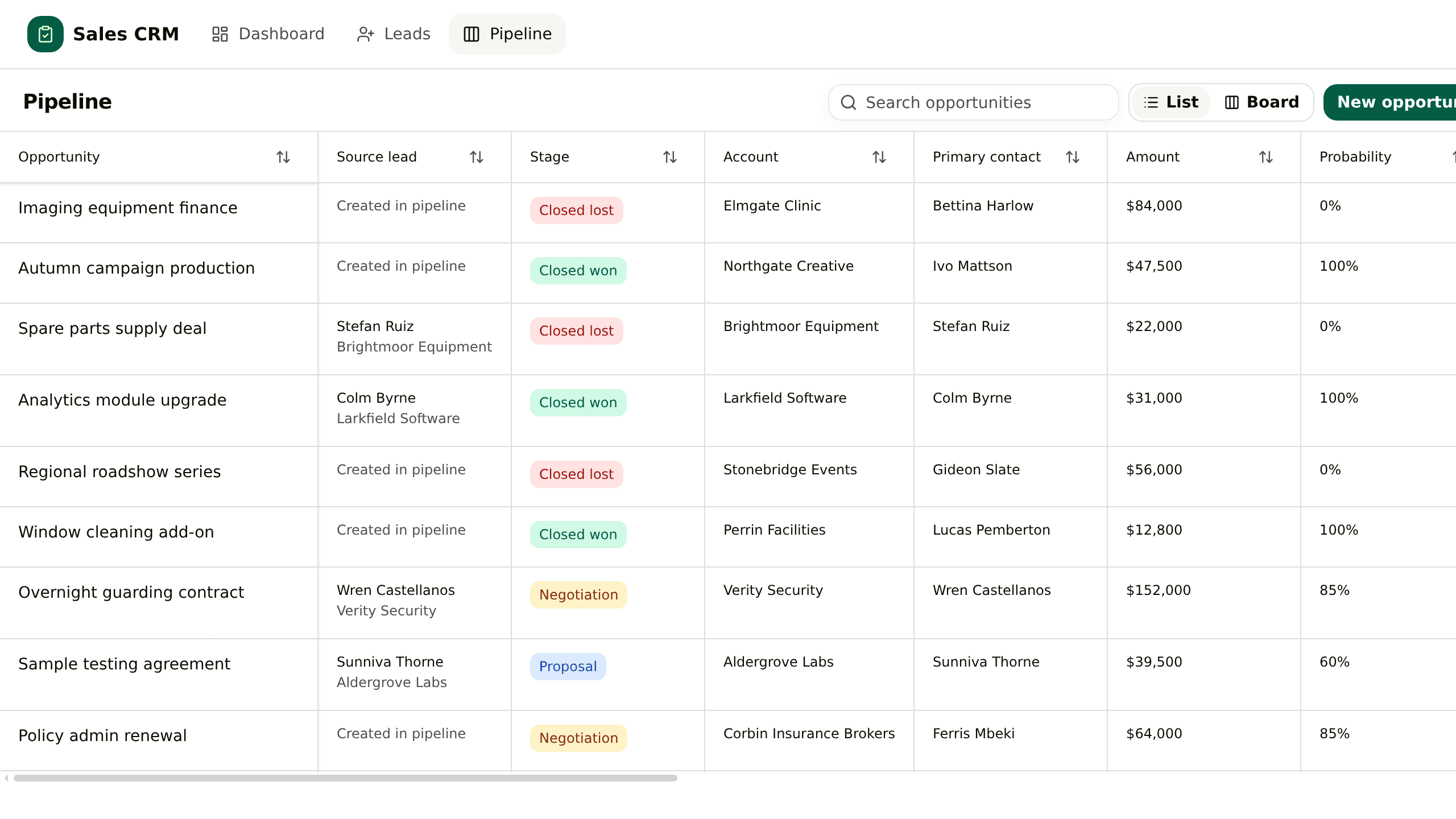
Sales
General CRM
Leads, accounts, contacts and opportunities in one App. Converting a lead writes the account, the contact and the deal together, and the deal keeps reading back to the enquiry.
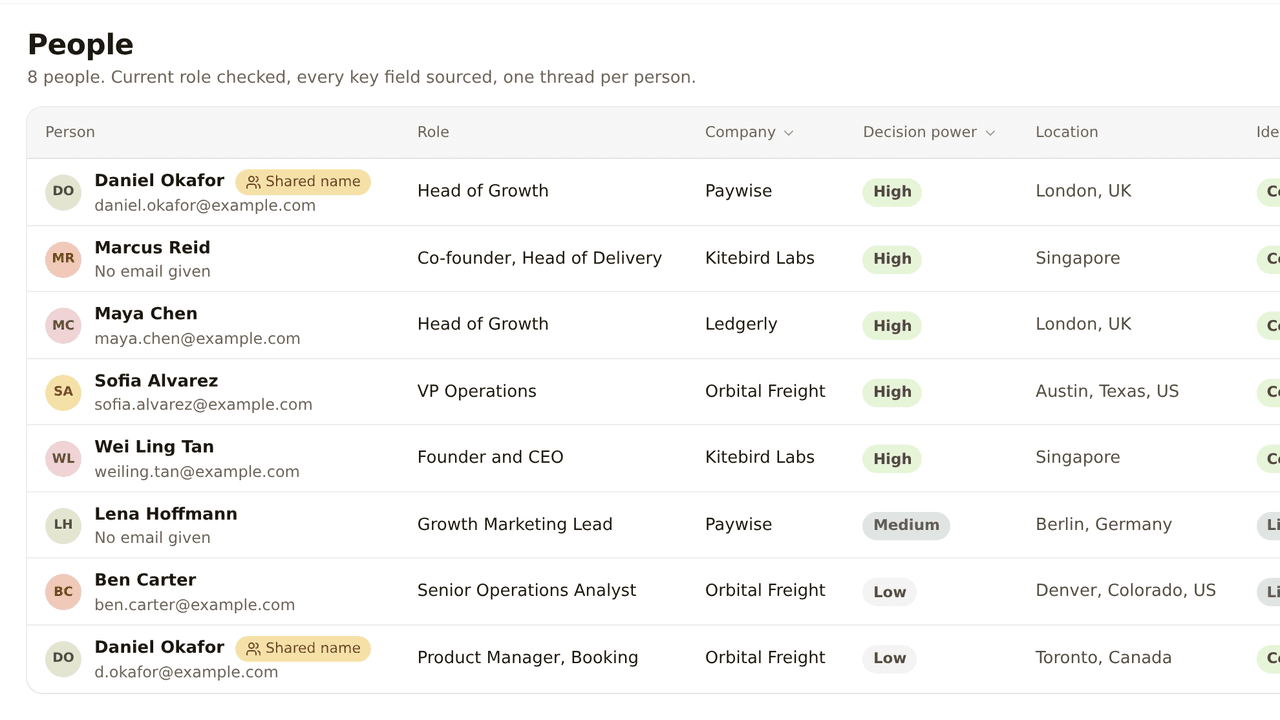
Sales
People Search
Sourced people profiles from an email, a LinkedIn link or a brief, with the current role checked and identity settled before anything else.
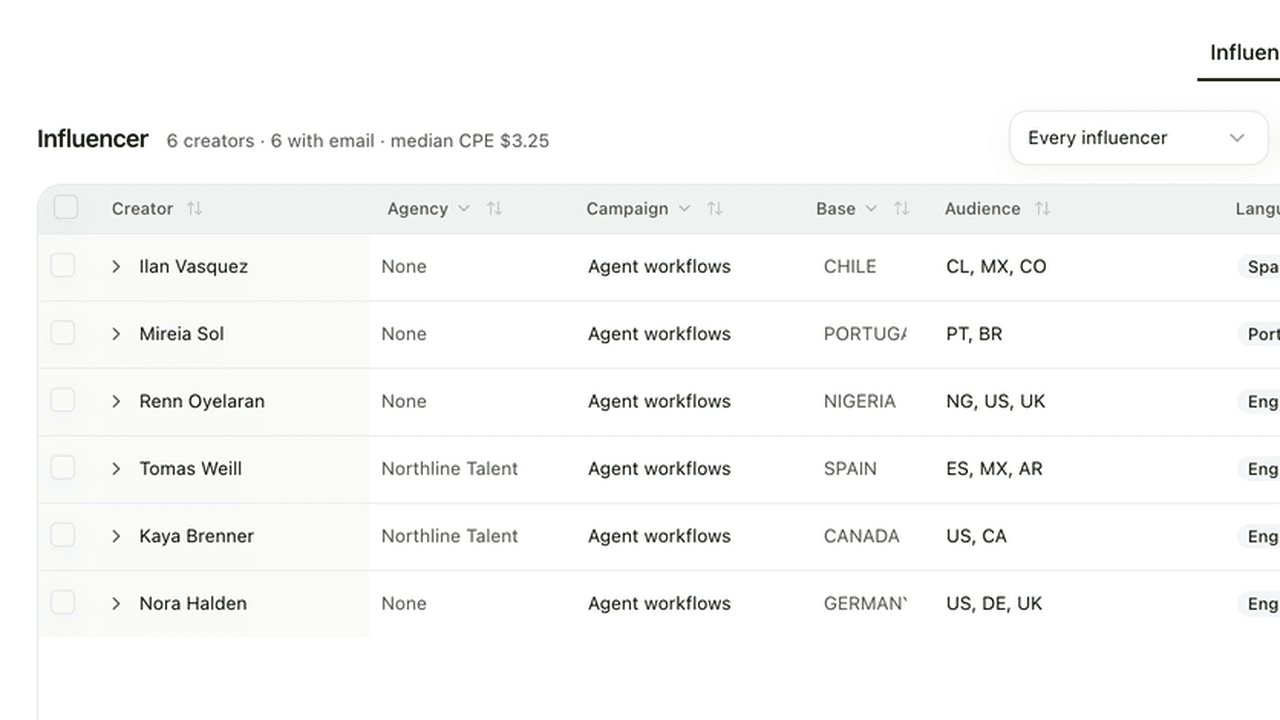
Marketing
Creator Management
A creator roster priced against the median of each creator's last ten posts, with outreach and posts tracked through to signups.
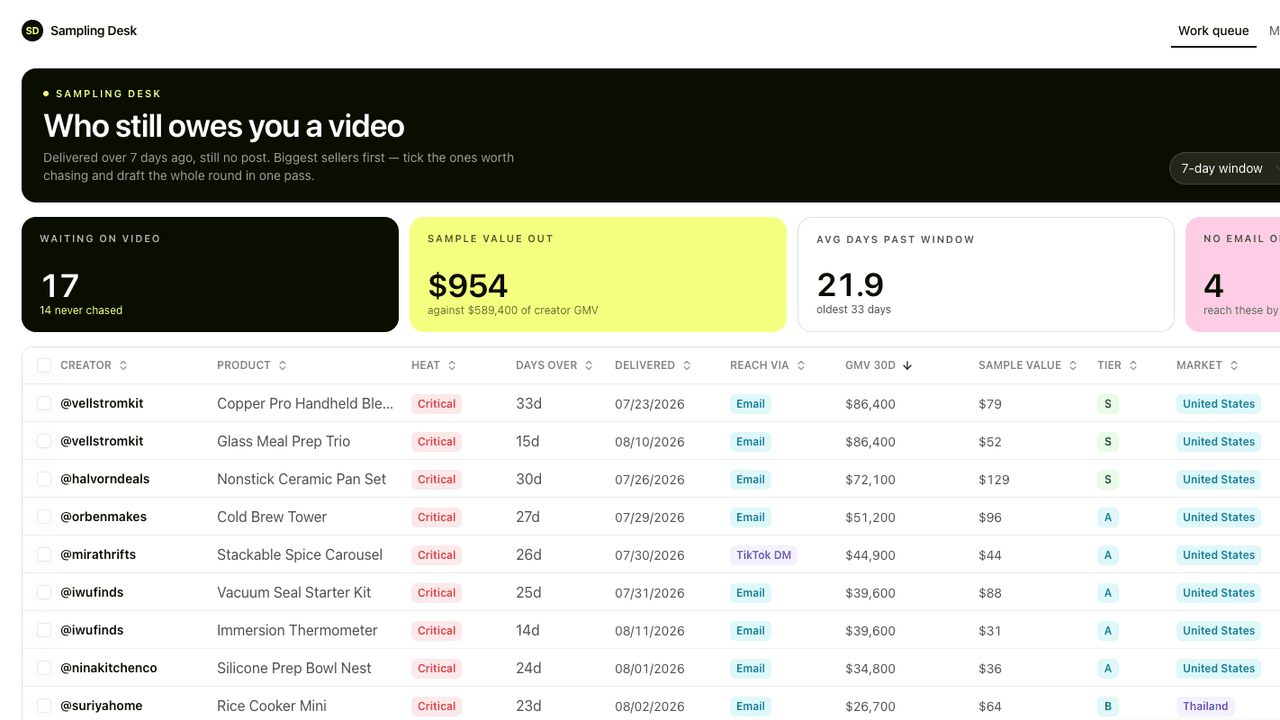
Ecommerce
Sampling Desk
One queue for the samples that shipped and never became a video, biggest seller first.
Construction
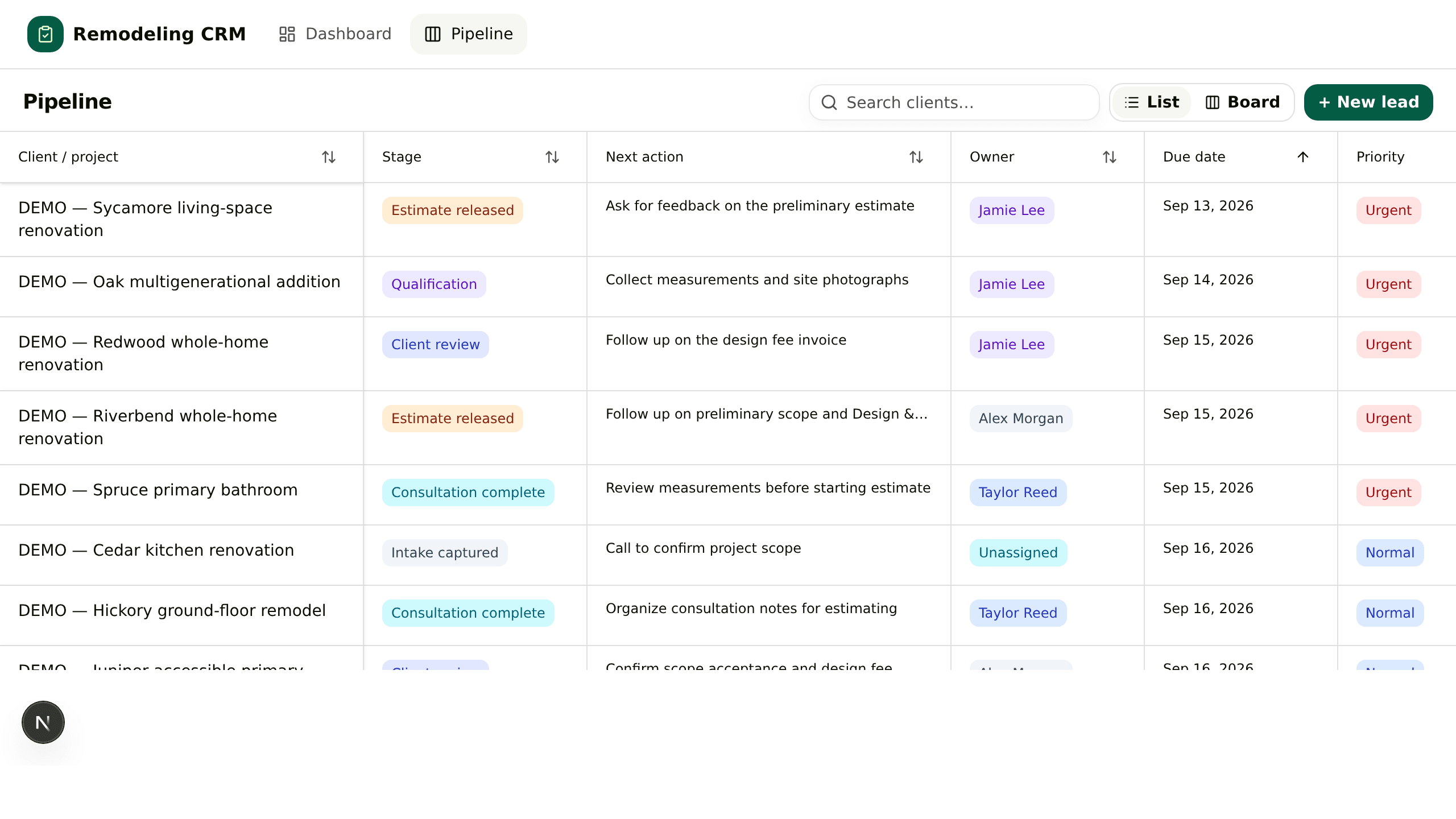
Remodeling CRM
One board for residential renovation sales: qualify, consult, estimate, then collect the Design and Discovery fee.
Hiring
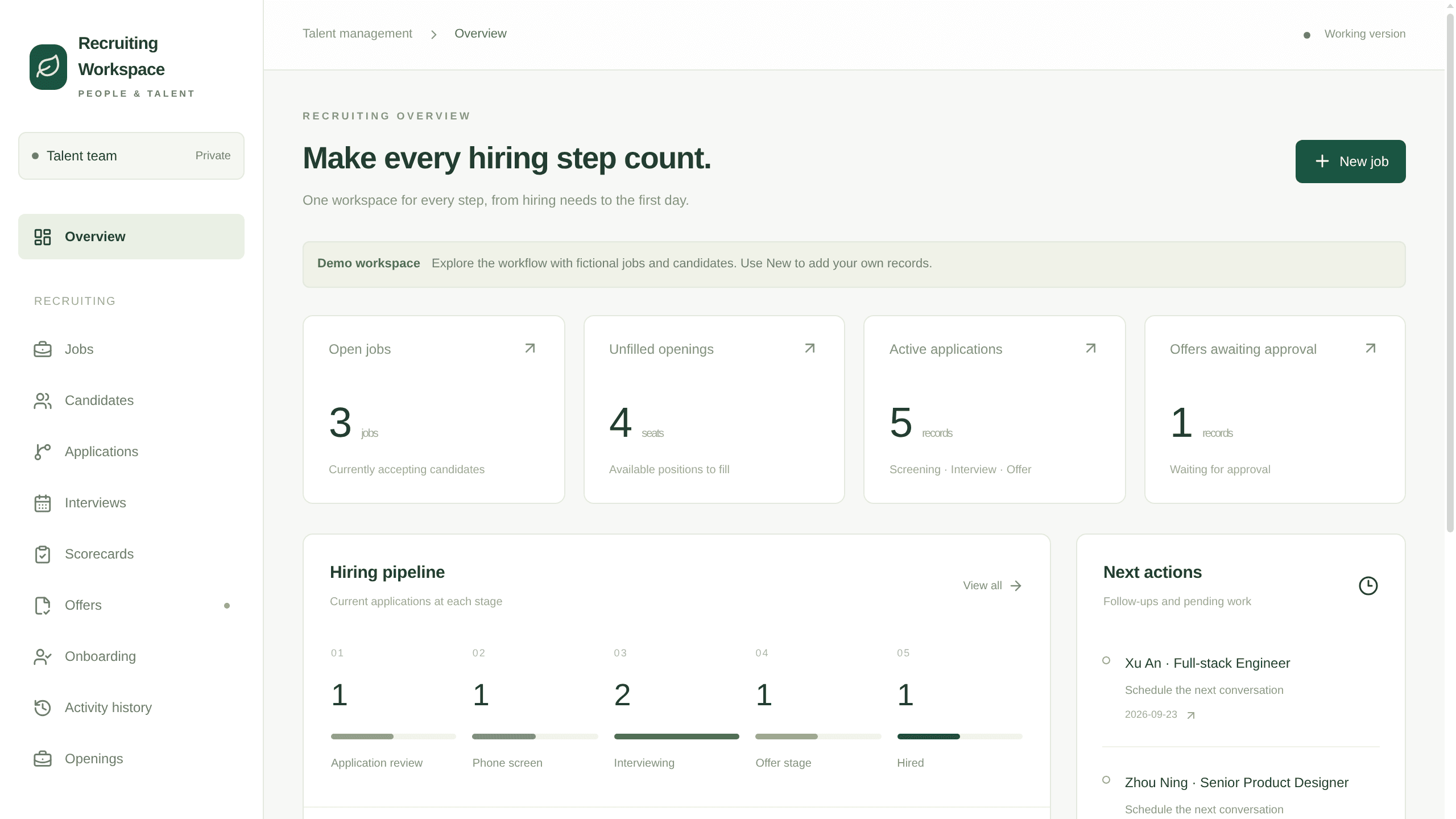
Recruiting Workspace
In-house hiring in one App: jobs and their openings, applications by stage, interviews with scorecards, offer approvals and the onboarding handover.
Travel
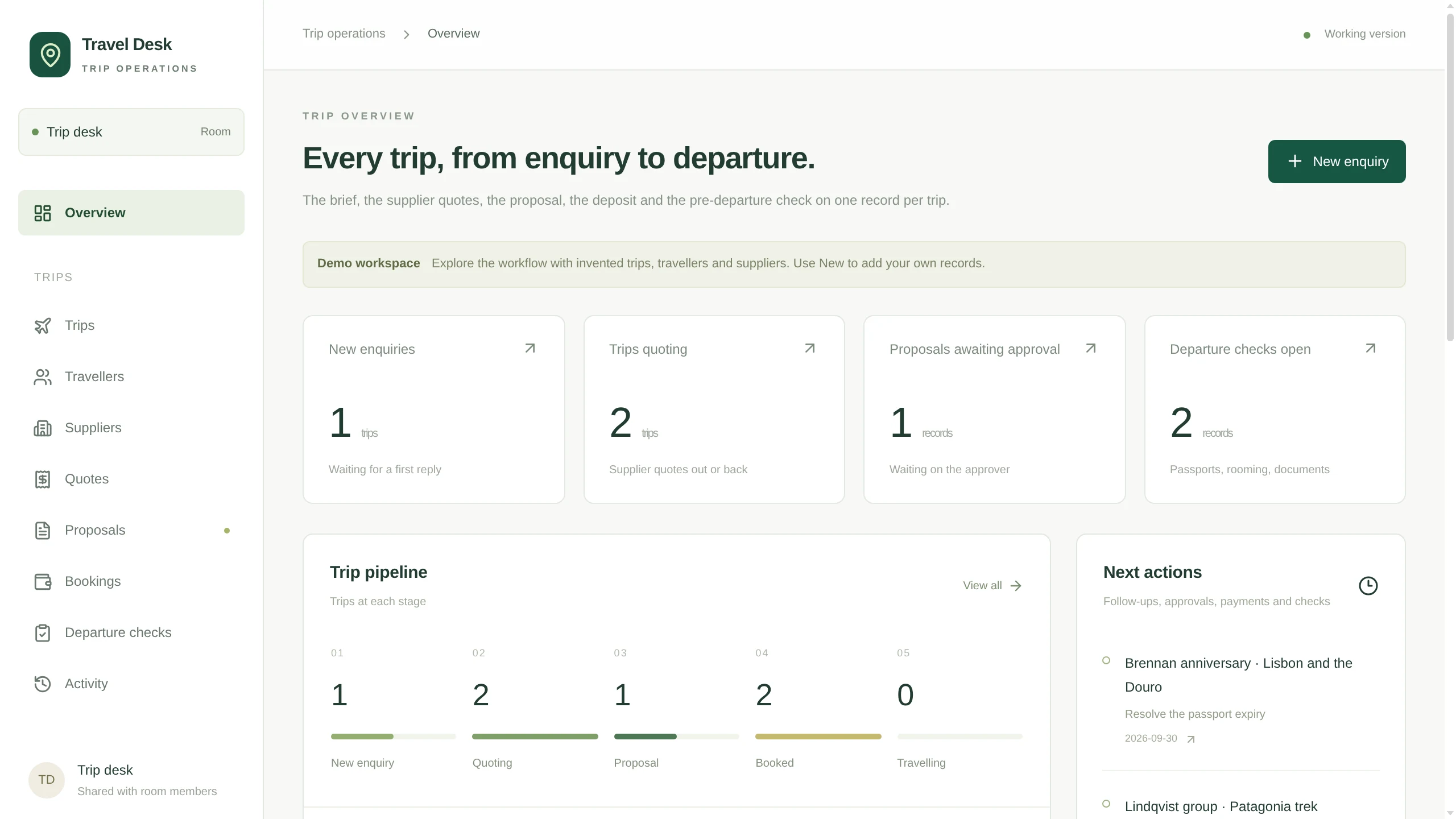
Travel Desk
A trip desk for a travel agency: enquiries with the brief in fields, travellers, supplier quotes per trip, proposals with versions and an approver, then bookings and the pre-departure check.
Operations
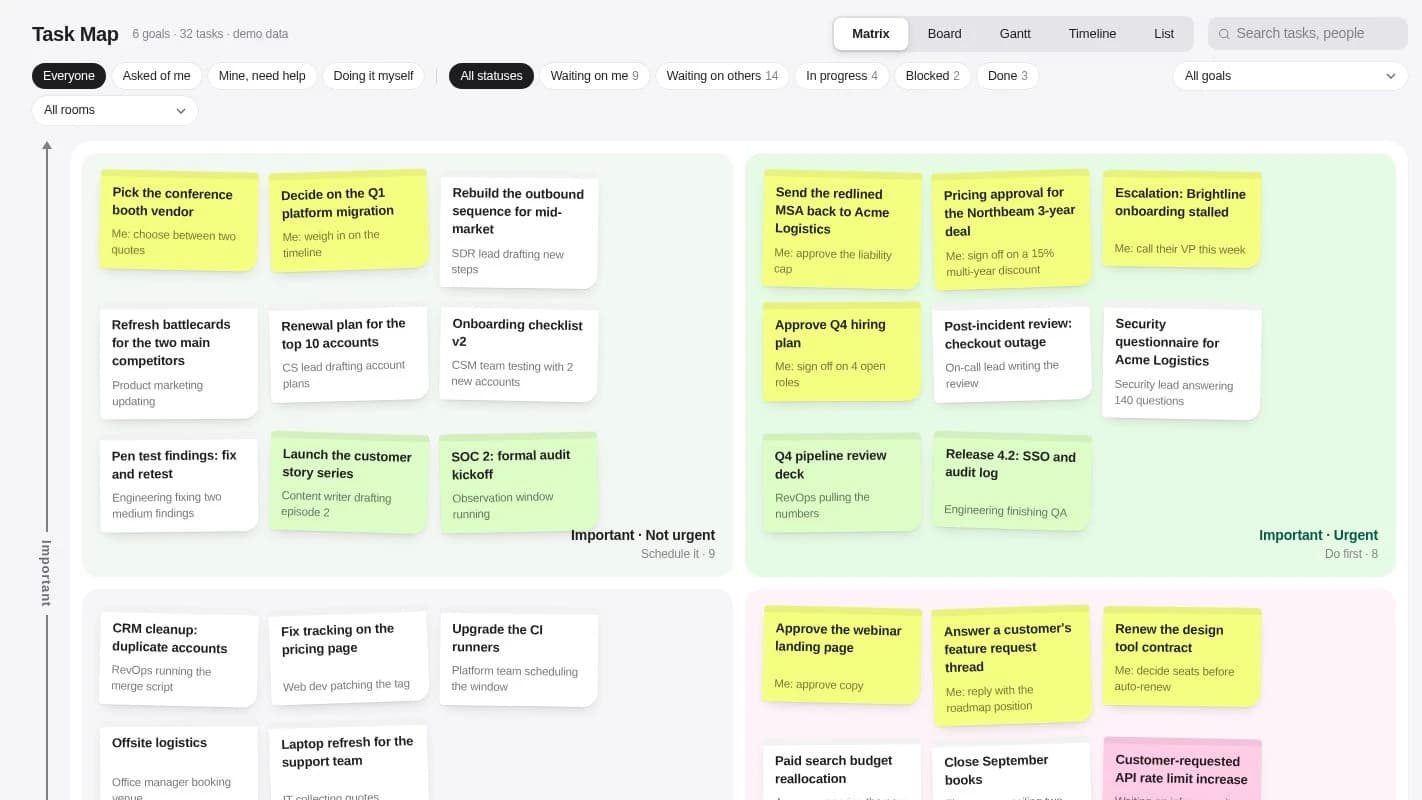
Task Map
Goals and one-off tasks on an Eisenhower matrix you reclassify by dragging, with Board, Gantt, Timeline and List views of the same work.
What it works with
01
Your App + Skills
Write down once how your team does the work. The agent follows it every time it updates the App.
02
Your App + Automations
Runs on a schedule or when a record changes: refresh the numbers, flag what is late, draft the follow-up.
03
Your App + your own data
Give the agent a sheet or a CSV, or connect the tool the data lives in today. Records are saved in your workspace.
04
Your App + a thread on every record
Each record has its own thread, so the question about a row sits next to the row.
05
Your App + your own agent
Bring Claude Code or Codex into the Room. It reads and writes the same App and waits for the same approvals.
06
Your App + your phone
Check a record or approve a change from the Kylon app on iOS and Android.
Each stage of a new tool
Describe it
Say what the tool is for, who uses it and what a record holds. The agent proposes the tables and fields, and asks about anything it cannot tell.
Say this in the Room
Build an App for our stock: products, suppliers and a reorder level on each product.
One sheet, start to finish, in one room
01
The ask

Otto Turn the stock sheet into an App we can all update.

AtlasAgentAtlas proposed three tables, Products, Suppliers and Orders, with a reorder level on each product.
ApprovedRook added a field for shelf location.
02
The import

Rook Here is the sheet.
AtlasAgentAtlas imported 412 rows and listed the 6 it could not match to a supplier.
ApprovedRook fixed the six by hand.
03
First week
Rook What is running low?
AtlasAgentAtlas answered from the App and linked each product's page.
ApprovedRook checked two counts on the shelf.
04
The reorder
Otto Draft what we need to order.
AtlasAgentAtlas drafted the orders for the five products below their level, grouped by supplier.
ApprovedOtto approved the orders. Rook sent them.
05
Every Monday
Otto Do this every week.
AtlasAgentAtlas set up a Monday run that lists what is low and drafts the orders.
ApprovedOtto approves each week's orders in the thread.
What comes with it
You connect
Nothing to start.
- Google Sheets, later, for importing the sheet your team uses today




How teams run it
Use case
How a Team Built Two Internal Apps in a Week (Without a Developer)
A media tech company built two AI-powered internal apps: a content tracker and an invoice processing system. Built-in AI handles OCR, image generation, and Q&A. Draft previews ensure safe deployment.
Internal tools teams build on Kylon
Examples by team, each with the instruction behind it.
Questions
Who is this for?
Teams that run part of the business from a spreadsheet, a shared doc or a tool that does not quite fit: stock, bookings, approvals, client lists, rotas.
Does it change anything without me?
The agent updates the App when you ask it to or when an Automation you set up runs. Anything that leaves the workspace, like an email or an order, waits in the thread for a person.
Where does the data come from?
From the sheets and files you give the agent and the tools you connect. Records are saved in the App in your workspace.
How do I start?
Press Start with this. The instruction is copied and Kylon opens. Paste it into the chat in your workspace, attach your sheet, and the agent builds the App. New here, you sign up first.
Can I change the App later?
Yes. Ask in the Room to add a field, a view or a rule, and the agent changes the App you already have.
Start with one sheet.
Give the Room the spreadsheet your team edits most. The agent turns it into an App and asks you what each column is for.