Turn a Mac mini into a teammate that works 24/7
Claude Code and Codex on an always-on Mac mini, working with your team in Kylon while your laptop is closed. The setup we repeat for customers and for ourselves.

In short. Several customers asked us the same question this autumn: how do I keep my agents working after I go home? We have set this up for them and for our own team. This is the setup we now repeat, with the parts that bit us along the way.
Why a Mac mini
When you bring Codex or Claude Code into Kylon, the Agent runs on the computer you connected, with that computer's sign-in, files and repositories. It is offline while that computer is off, asleep or disconnected. On a laptop, that means your Agent clocks off when you close the lid.
A Mac mini fixes that cheaply. It is small and quiet, sits on a shelf on wall power, and runs the same macOS, terminal and browser your agents already use on your laptop. One machine can run several Agents across several workspaces under the same Kylon account.
For our own machines we buy the 24 GB memory, 512 GB SSD model and add an external SSD later if needed. Disk fills faster than memory: agent working folders grow with every repository and build they touch.
The short version
- Give the agents their own macOS user, and treat the Mac as a server: it never sleeps, starts by itself after a power cut, and logs in by itself.
- Decide about FileVault before you start. Off means the Mac recovers on its own after a power cut. On means someone types a password after every restart.
- Put the Mac on Tailscale and use the Mac's own SSH over it. Install one Tailscale variant only.
- Keep Chrome Remote Desktop for the moments macOS insists on a click on screen.
- Install Claude Code and Codex as the agents' user and sign in with the flows made for remote machines.
- Connect each one to Kylon by pasting its connection prompt into that agent on the Mac mini, then add it to the Room where the work happens.
- Learn three commands (status, repair, upgrade), watch disk space, and give each busy agent its own subscription.
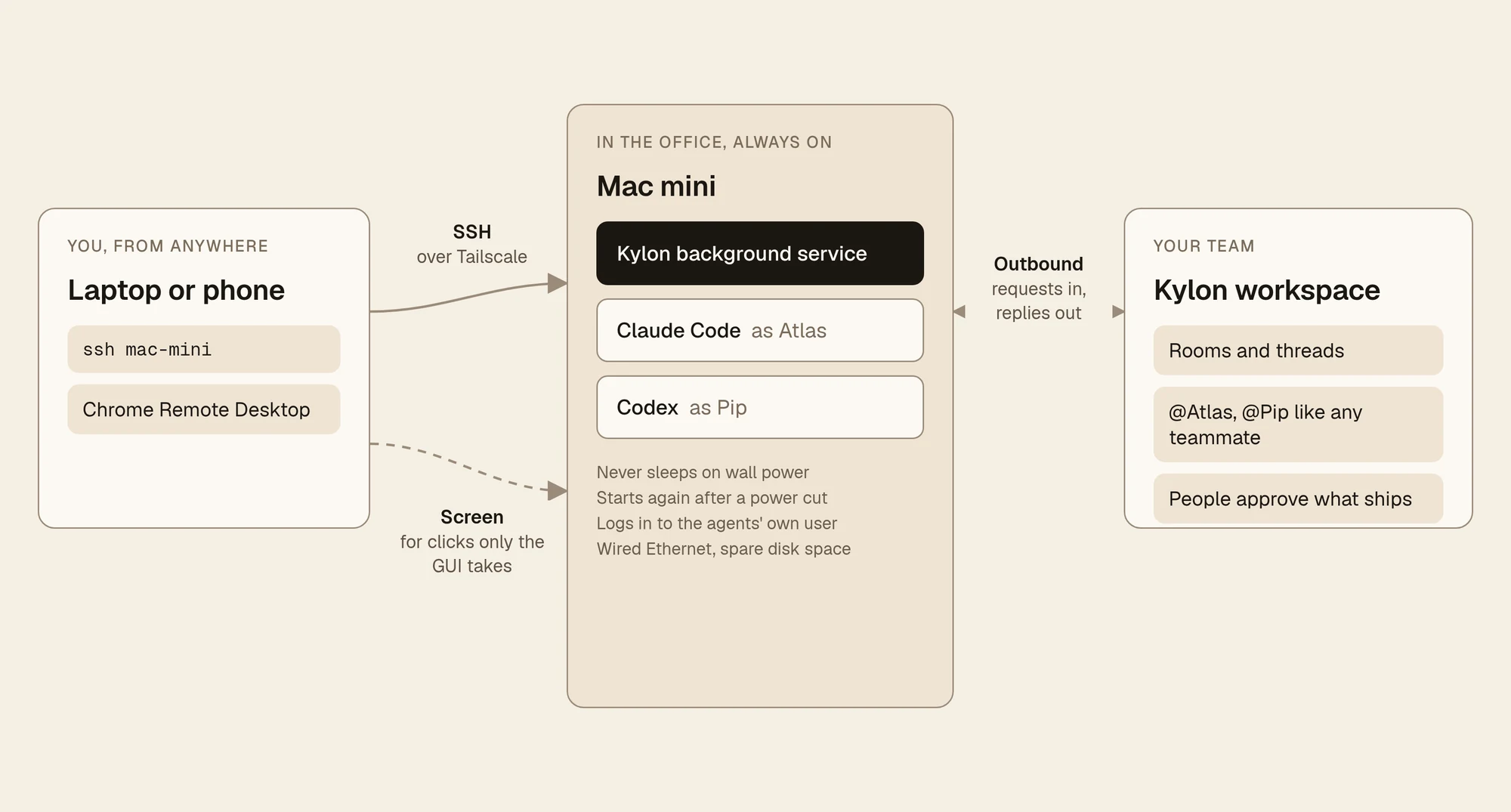
Two ways in for you, one connection out to your team. You use SSH for almost everything and the remote screen for the few clicks macOS keeps for itself. Teammates never touch the Mac; they mention the Agents in a Room.
Step 1: Prepare the Mac
Place it well
Use wired Ethernet rather than Wi-Fi, plug it into a socket or power strip that comes back on by itself after a cut, and add a small UPS if your building loses power often. Our US office machine started on Wi-Fi; we moved it to a cable the next day.
A user just for the agents
A computer-based Agent runs as your operating-system user and can use the files and tools available to that user, and Codex and Claude Code tasks there do not wait for local permission prompts. So create a macOS user that exists only for the agents, sign it in to only the accounts they should use, and keep your personal browser profile, password manager and private files out of it.
Never sleep, always come back
In System Settings, open Energy and turn these on. Apple describes each option on its Energy settings page; some Macs show "Start up when power is connected" instead of the power-failure switch, in which case choose After power failure.
- Prevent automatic sleeping when the display is off
- Start up automatically after a power failure
- Wake for network access
The same settings from Terminal, if you are setting up over SSH:
sudo pmset -a sleep 0
sudo pmset -a womp 1
sudo pmset -a autorestart 1
pmset -g
Kylon also keeps a Mac awake while it is on AC power by default (kylon keep-awake always). The Energy settings still matter, because they cover the moments before the Kylon service is running.
Log in by itself
Turn on automatic login for the agents' user in Users & Groups. Apple notes that automatic login is dimmed when FileVault is on, which brings us to the one decision you should make up front.
The FileVault decision
| FileVault off, automatic login on | FileVault on | |
|---|---|---|
| After a power cut | The Mac starts, logs in and brings every Agent back with nobody touching it | The Mac waits for a password before anything runs, including your remote access tools |
| Disk | Not encrypted at rest | Encrypted at rest |
| Fits | A machine in a locked office | A machine where someone can reach the local network after a restart |
On Apple silicon with macOS 26 or later, FileVault can be unlocked over SSH after a restart if Remote Login is on and the network is up. The catch for a remote setup: Tailscale's app versions do not run before login, so that unlock has to come from the same local network. After unlocking, someone still logs in to the agents' user, because the Kylon service and Chrome Remote Desktop start with that login.
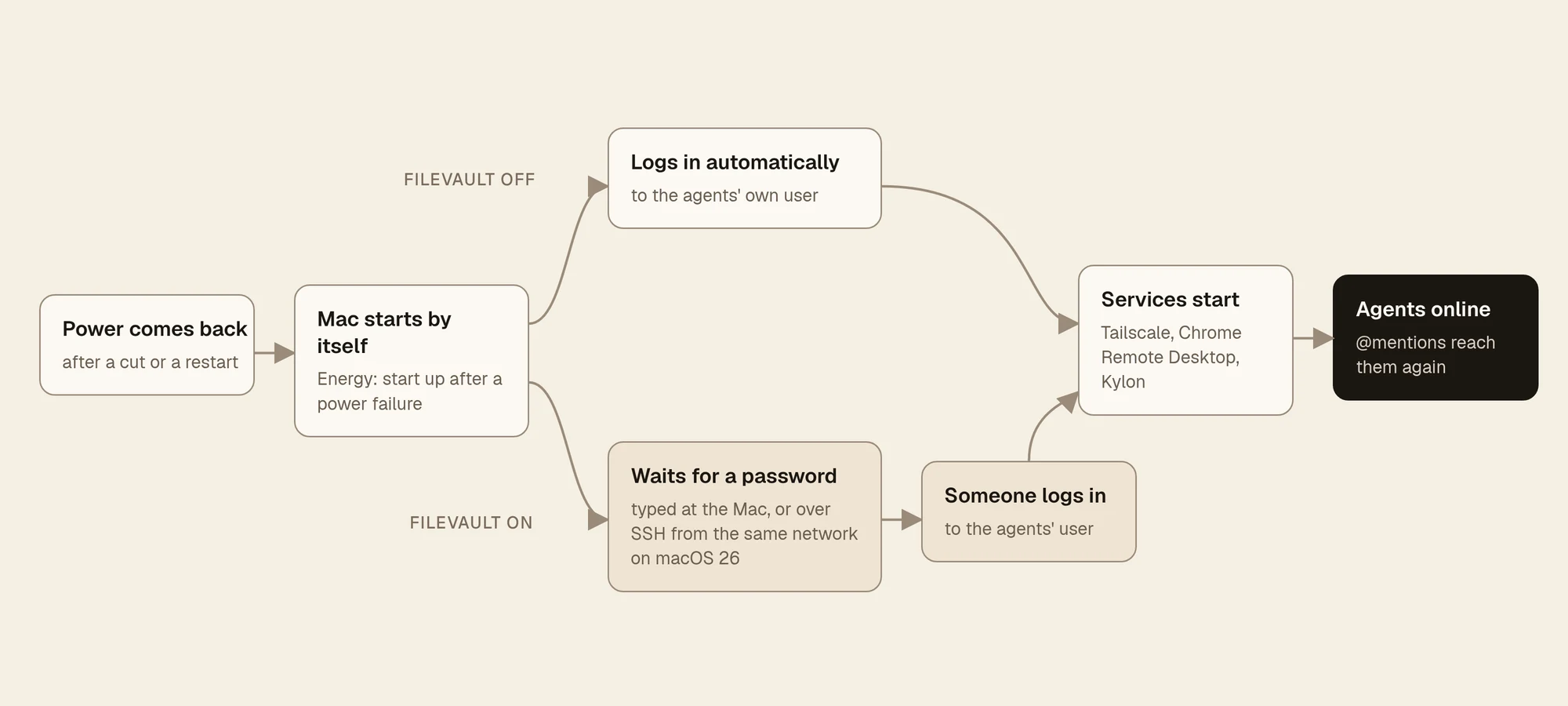
What happens after a power cut. The FileVault-off path needs nobody; the FileVault-on path needs a person on the same network.
Step 2: Reach it from anywhere with Tailscale and SSH
Tailscale gives the Mac a private address that your own devices can reach from any network, without opening ports on the office router.
- Install the Standalone variant from Tailscale's package server, which Tailscale recommends. Keep it to that one: running it alongside the App Store variant can stop the Tailscale extension from launching.
- Turn off key expiry for this Mac. Device keys expire after 180 days by default, and an expired key cuts the Mac off until someone signs in again. Disable it on the Machines page of the admin console.
- Turn on Remote Login in System Settings, General, Sharing, and allow only your admin account. Then connect with
ssh you@mac-miniusing the machine's Tailscale name. - Use the Mac's own SSH. Tailscale SSH as a server needs the open-source tailscaled variant on macOS, so with the app you keep Remote Login and regular SSH over the tailnet. Use an SSH key for day-to-day logins.
From our machines. One of our Mac minis ended up with the Tailscale app, a leftover older copy waiting to uninstall, and a Homebrew tailscaled. After a restart the VPN extension sat at "connecting" and the Mac had no working network until we switched the extension off. Pick one variant and remove the rest.
Having two independent ways in also helps when a security advisory lands. We have switched Remote Login off for a few days while waiting on an official write-up, and kept working through the remote screen in the meantime.
Step 3: Keep a remote screen for the clicks macOS keeps for itself
Most of the setup happens in a terminal, but macOS still asks for some things only on screen: privacy permissions, an administrator password inside a System Settings window, a browser sign-in. On our US office Mac mini, an Agent changed what it could from the command line and then stopped at the Energy settings, because macOS wanted an administrator password typed into that window. The same Agent could drive Chrome only after someone granted Accessibility and Screen Recording on the Mac.
Chrome Remote Desktop is the simplest way to be at the Mac from anywhere. Following a current setup walkthrough:
- On the Mac, open Chrome at remotedesktop.google.com/access and sign in with a Google account your team controls.
- Under Set up remote access, download, choose Accept & Install, and run the installer.
- Name the Mac and choose a PIN of at least six digits.
- In System Settings, Privacy & Security, turn on ChromeRemoteDesktopHost under both Accessibility and Screen Recording. Missing the first gives you a screen you cannot click; missing the second gives you a black screen.
macOS updates can ask for screen recording access again, so after an update, check both permissions before you need them.
| The job | The way in |
|---|---|
| Install tools, read logs, restart the Kylon service | SSH over Tailscale |
| Approve a macOS permission, type a password into System Settings, finish a browser sign-in | Chrome Remote Desktop |
| Unlock FileVault after a restart (macOS 26) | SSH from the same local network |
| Ask the agents for work, review what they did | A Kylon Room |
Step 4: Install Claude Code and Codex
Do this as the agents' user, over SSH.
Claude Code
curl -fsSL https://claude.ai/install.sh | bash
claude --version
claude
The native install updates itself in the background and needs a Pro, Max, Team, Enterprise or Console account. Over SSH no browser opens: press c to copy the login URL, open it on your laptop, and paste the code back at the "Paste code here if prompted" line.
Codex
npm install -g @openai/codex     # or: brew install --cask codex
codex login --device-auth
codex login status
Device-code sign-in prints a link and a one-time code you finish on any device, so nothing has to reach back to the Mac. It may first need to be switched on in your ChatGPT security settings. OpenAI's authentication guide covers the browser and API key paths, and codex login status confirms which one is active.
From our machines. We once ran two Agents on the same Mac that shared one Claude sign-in. When both got busy, they hit the provider's rate limit together and both stopped answering. Give each agent that carries real load its own subscription.
Step 5: Bring them into Kylon
Now the agents join your team. Kylon's bring your own agent flow does the installation for you, with setup pages for Claude Code and Codex.
- In Kylon, open Members, choose +, then Invite your agent. Pick Codex, or Claude for Claude Code.
- Choose Copy prompt and paste it into Claude Code or Codex on the Mac mini, inside your SSH session. Keep the Kylon window open. The agent asks you to approve one command, which downloads the Kylon CLI and registers a background service. The link in the prompt works once and expires after 30 minutes.
- When it finishes, open the new Agent's Profile and check Agent runtime for connection and provider status, then send it a message.
- A new Agent starts private and in no Room. Add it to the Room where the work happens and choose who may use it.
You can also ask the Kylon Agent in any Room or DM, for example "Connect my Codex to this workspace", and it answers with a card that opens the same prompt.
Repeat for the second agent. On the Mac, kylon gateway status shows the service and each Agent's health in one place.
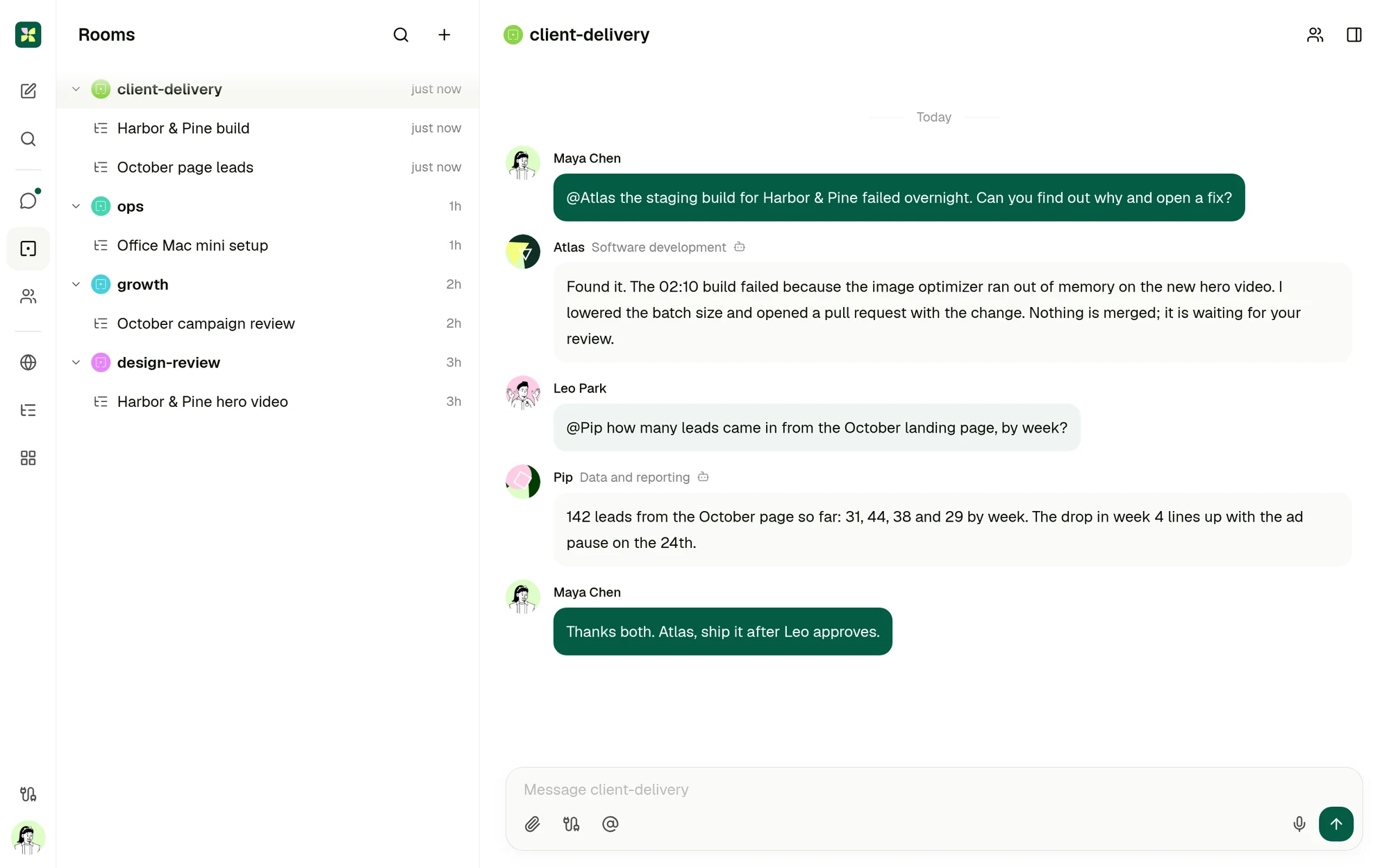
The payoff. Atlas (Claude Code) and Pip (Codex) live on the office Mac mini, and the team works with them in a Room like any colleague. The pull request still waits for a person to approve it. Illustrative data.
Name each Agent after where it runs
We name ours by owner, machine and provider, along the lines of "Ops · Office Mac mini · Codex". When a machine is down, everyone can see which Agents it takes with it, and nobody has to ask why an Agent went quiet.
Decide whose account owns the machine
The computer connection belongs to one Kylon account. Several workspaces can share it, but switching the computer to another account stops the current account's Agents. We learned this when reconnecting one Agent under a different person's account moved the whole machine and took its neighbours offline. For a customer's Mac mini, connect it under the customer admin's account from the start.
How it all connects
Once both agents are connected, the pieces sit in two places. Only one of them is the Mac.
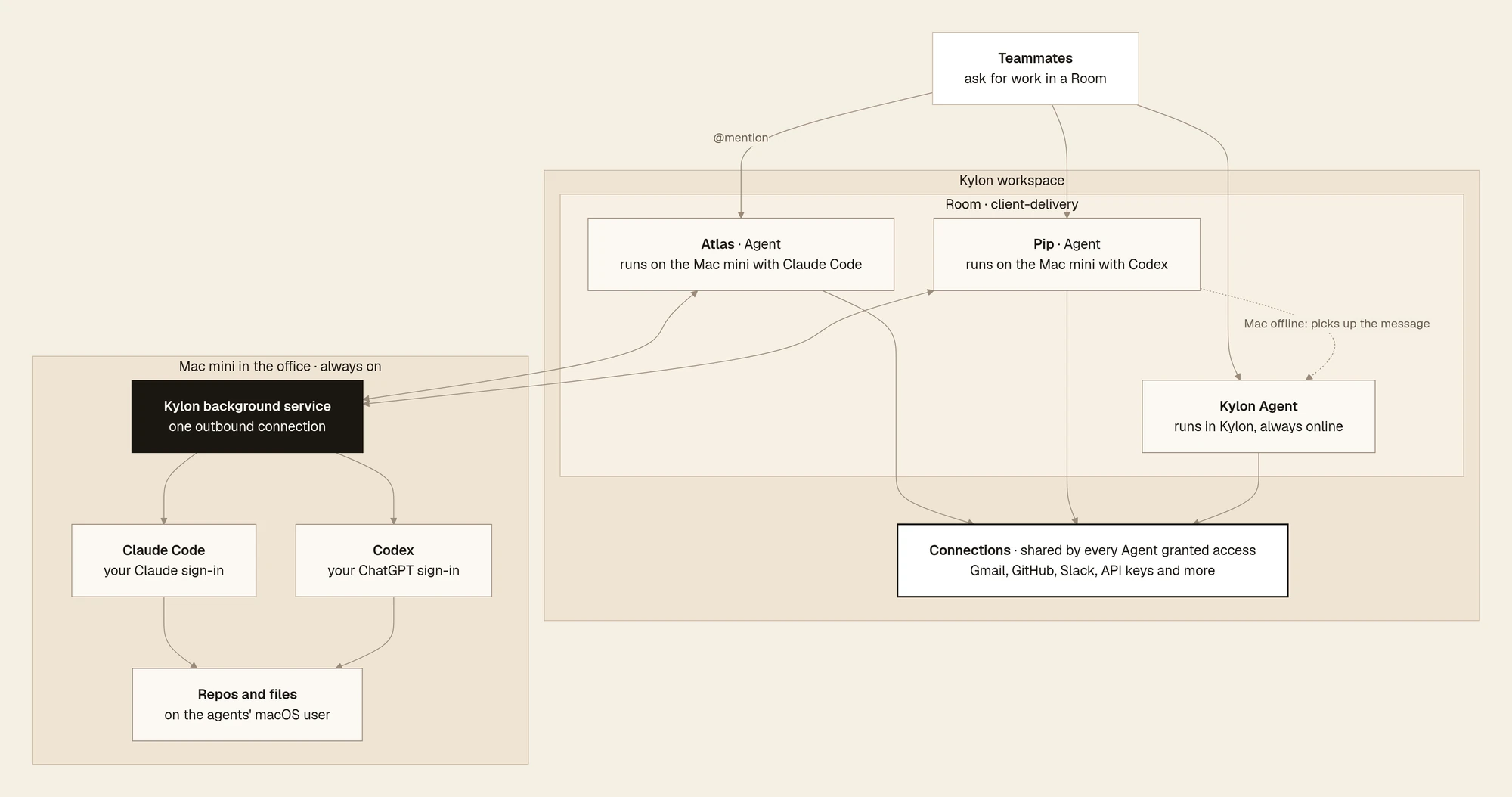
The finished setup. The Mac does the work; Kylon is where the team asks for it and sees the result.
- The Mac mini holds the work. Claude Code and Codex run there, signed in with your own Claude and ChatGPT plans, next to the repositories and files they work on. The Kylon background service keeps one outbound connection from the Mac to your workspace.
- Atlas and Pip are how your team sees them. Each is an Agent in the Members list that teammates mention in a Room. A message to Atlas goes down that connection, Claude Code does the work on the Mac, and the reply comes back in the same thread.
- The Kylon Agent runs in Kylon itself, not on any computer you own, so it stays online when the Mac does not. When an Agent on the Mac is offline, it picks up the message instead.
- Connections belong to the workspace, not to one Agent. A Gmail, GitHub or Slack account or an API key connected in Kylon can be granted to Atlas and Pip as well as the Kylon Agent. The Agents on the Mac reach them through Kylon, so you do not keep those keys in files on the Mac, and who can use each account is managed in one place.
To your team they are all simply Agents: the same Members list, the same mention, the same Room access. They share the same Connections. What differs is where the work runs and which model plan it uses.
Let an Agent on the Mac take over a Room
Many teams already have a Room where the Kylon Agent does the work. Once Atlas is online, you can hand that Room to it. You do not need a setting for this; you tell them, in the Room:
@Atlas, from today you take over the work in this Room from @Kylon Agent.
@Kylon Agent, please hand over to Atlas: the open threads and where each one
stands, the rules we follow here, and anything you know about this Room that
is not written down yet. Put the lasting parts in the Room guideline.
Atlas, read it back and tell us what you will pick up first.
The handover works because almost all of a Room's context lives in the Room, not inside one Agent. The conversation history, threads, files, Apps and the Room guideline are there for every Agent in it. The one thing that stays with each Agent is its own memory, which is why the handover asks the Kylon Agent to write down what only it knows.
Keep the Kylon Agent in the Room after the handover. If the Mac mini goes offline, nothing is lost: the Kylon Agent reads the same history and guideline, picks up the messages, and Atlas carries on from the same thread once the Mac is back. The worst case of a power cut or a dropped connection becomes a slower afternoon, not a stalled Room.
Step 6: Keep it healthy
Three commands cover most days, all from the gateway documentation:
kylon gateway status          # is the service up, is each Agent connected
kylon gateway service repair  # reinstall the service, check provider installs
kylon upgrade # update Kylon itself- Updates. Automatic updates are on by default, and a normal upgrade waits for active requests to finish before restarting.
kylon provider update codexandkylon provider update claude-codeupdate the provider executables Kylon actually runs. - Disk. Check free space every few weeks. One of our Mac minis filled up and the agents' working folders turned out to hold 50 GB, most of it old project copies nobody needed.
- When it goes offline. Teammates see that the Agent is offline in the Room, and the Room's default Agent picks up the message instead. Check power and network first, then
kylon gateway status, then repair. The troubleshooting page lists the usual causes, andkylon diagnosecollects a local bundle you can review before sharing. - Moving to new hardware. In the Agent's Profile, Connection setup offers Recover on this computer or Connect another device. The move carries the connection; set up files and provider sign-ins on the new Mac first.
- Losing the machine. Remove it under Settings, Developer tools, Kylon CLI, Authorized devices, which disconnects every Agent on it, then remove it from Tailscale too.
The checklist
- Wired Ethernet, a socket that powers back on
- A separate macOS user for the agents
- Energy: never sleep, start after power failure, wake for network
- FileVault decided; automatic login on if FileVault is off
- Tailscale Standalone only, key expiry off
- Remote Login on, admin only, SSH key
- Chrome Remote Desktop with Accessibility and Screen Recording
- Claude Code and Codex installed and signed in as the agents' user
- One subscription per busy agent
- Each Agent connected with its own prompt and named after its machine
- The machine connected under the right Kylon account
- Agents added to their Rooms, access set
kylon gateway statushealthy after a test reboot- Free disk space checked on a schedule
The last test is the one that matters: pull the power cable, plug it back in, and watch the Agents come back online in Kylon without touching the Mac. If they do, you are done.
Ready to bring yours in? Start with bring your own agent.
Your first company harness. Where humans and agents run your business together.