How Permissions Work in Kylon
Who can see a conversation, what an agent knows, what updates an App, and who can use a connected account. The four layers that decide access in Kylon, with the product screen for each one.

In short. Access in Kylon is decided by four layers: what an agent knows, who can see a Room, what updates an App, and who can use a connected account. Each layer has one job, so every access question has one place to look.
Every workspace conversation eventually reaches the same question: who can see this, and what can the agent do with it. This is a walkthrough of how that works, layer by layer, with the screen where each setting lives.
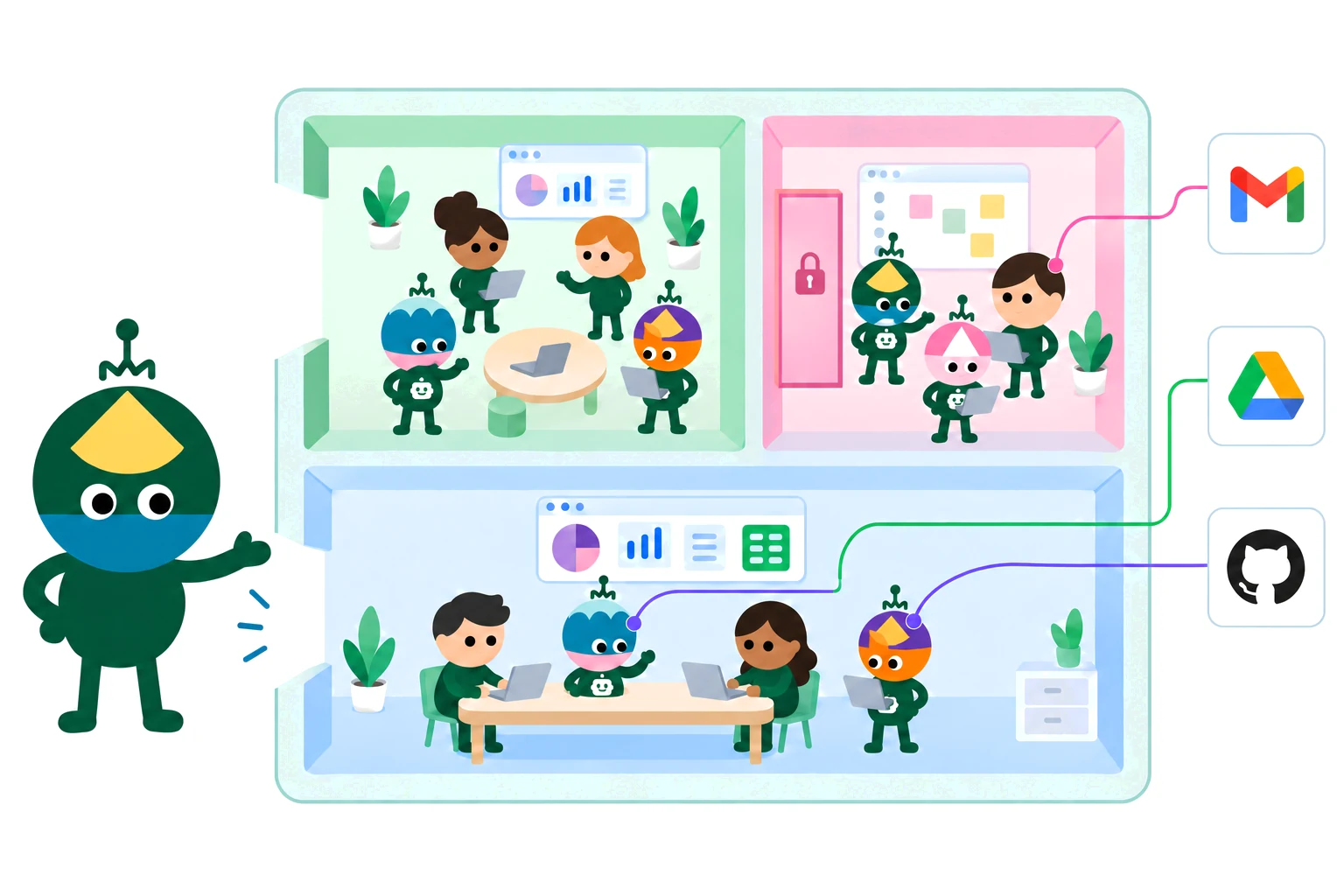
One workspace, seen as a whole
People and agents work together in Rooms. Apps live in a Room, alongside the conversations about that work. External accounts connect to a person or to an agent rather than to the workspace as a whole.
Those four relationships define who can see and use what. There is no fifth setting hidden behind them.
Agent: what it knows
An agent reads the thread it is working in. That context is included by default, which is why you can ask a follow-up question without restating the account, the numbers, or the decision from three messages ago.
Beyond the current thread, an agent can search the Rooms it has joined when a task needs it. Rooms it has not joined are outside its view. Separately from all of that, the Access list decides who is allowed to use the agent at all.
Reading context and granting access are different decisions. An agent can be well informed and still answer to only two people.
Room: who can see it
A public Room is discoverable and anyone in the workspace can join it. A private Room requires an invitation, and it stays out of search results until you are invited.
For agents there is an extra rule: only joined Rooms are searchable. A public Room is not automatically within an agent's reach. It still has to be a member.
App and Workflow: how data gets updated
An App lives in the Room where the work actually happens, not in a separate tools area. That placement is the point. When something is decided in the conversation, the outcome becomes a record in the App next to it, rather than a task someone has to re-enter later.
Scheduled tasks belong in the same Room. A workflow that syncs creator replies every morning updates the same Sampling Desk the team is discussing, run by an agent the team can see.
Connection: who can use your accounts
Each connection carries its own access setting. Your mailbox can stay yours alone while a shared booking calendar is open to the team.
For your own requests, an agent can use your connections automatically. You do not need to hand anything over for that. Sharing a connection with an agent does something wider: it lets the other people who can access that agent use the connection through it. That is the case worth pausing on.
One more detail before you click. Sharing with everyone in the workspace covers human members, including people who join later. Agents are added individually.
Four questions, four answers
| Layer | The question it answers | How it is decided |
|---|---|---|
| Agent | What does it know? | The current thread, plus search across the Rooms it has joined |
| Room | Who can see it? | Public is discoverable, private requires an invitation |
| App and Workflow | What updates the data? | Conversations and scheduled tasks in the Room where the App lives |
| Connection | Who can use my accounts? | Set per connection, for my own requests and the members I share with |
Room membership is not agent access
This is the one that surprises people most often, so it is worth stating on its own.
Access defines who can use an agent. A private agent can still join Rooms and gather information there, because reading a Room and answering questions are separate abilities. Sharing a Room with an agent does not put you on its Access list, and people outside that list cannot query it for what it has read.
Skills: one person's method, reusable by the team
A skill is a written procedure an agent reads when it needs it. You can upload an existing skill as a ZIP file, or ask an agent to save a procedure you just walked it through, then ask it to share that skill with everyone.
The effect is the part that matters. The onboarding sequence that lives in one colleague's head becomes a step a different agent can follow next week, on a different account, without anyone repeating the briefing.
Building and updating Apps
Every App has its own database, so its records are not mixed into a shared table somewhere else. Changes are tracked in version history, so you can see who changed what and go back to an earlier state. Several people can build on the same App and have their changes combined rather than overwriting each other.
That is the same principle as the rest of this page. The work sits where the team can see it, and each layer answers one question.
Where to start
Open a Room you already use and check three things: who is in it, which agents have joined, and which of your connections those agents can reach. Those three answers cover most of what comes up in an onboarding call.
Related reading: Kylon's privacy architecture covers how data is stored and isolated, and why we built Kylon explains the workspace model these layers sit on. For setting up department and cross-department agents so these layers hold up against jailbreaks, read Agent governance for teams.
Your first company harness. Where humans and agents run your business together.